
Who can fix my WordPress website without guessing?
The awkward bit is that a screenshot rarely tells anyone enough to repair a WordPress site safely. It shows the symptom. It does not show the hosting error, the PHP version, the cache layer, the recent plugin update, the missing SMTP connection, or whether there is a usable backup waiting in the wings.
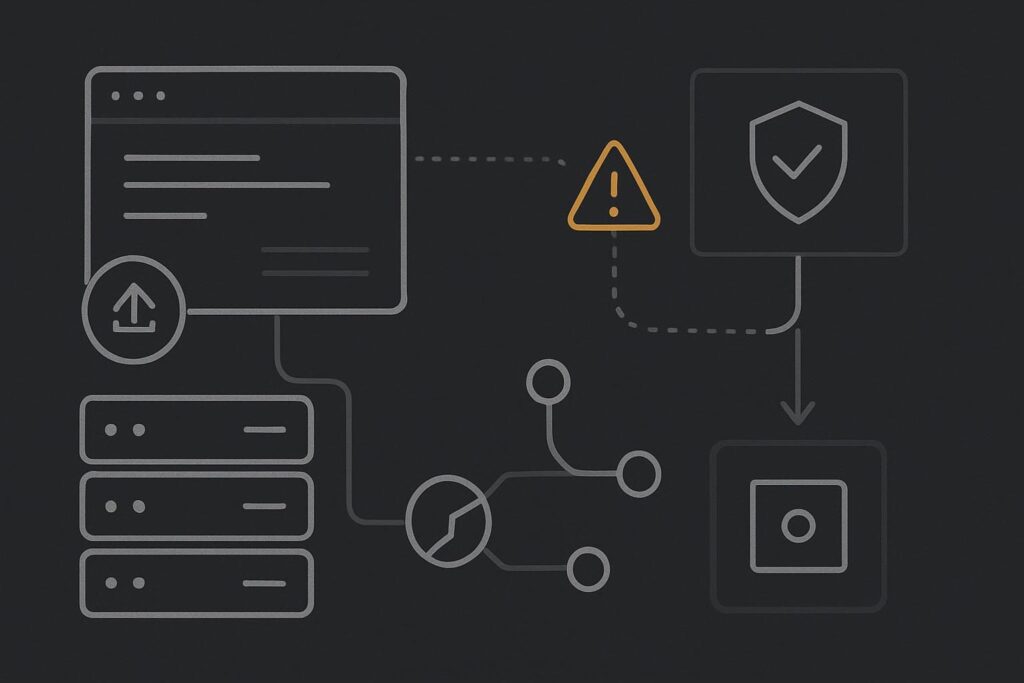
A repair provider should explain the route before touching live
A useful repair provider starts by working out what can be observed, reproduced and recovered. That does not mean every fault needs a lengthy investigation before anything happens. A fully broken checkout or inaccessible website may need urgent containment. It does mean changing five plugins, switching themes and clearing every cache on the live site is not a diagnosis method. It is a decent way to make the original evidence disappear.
Who can fix my WordPress website? A capable WordPress repair provider can be a freelancer, specialist developer, agency support team or hosting-side technician, depending on the fault. The important distinction is not the job title. It is whether they can obtain the relevant access, preserve evidence, reproduce the issue where possible, inspect logs and backups, and explain the safest repair or rollback route before making broad live changes.
A broken form, booking route or checkout can interrupt enquiries while the rest of the website still looks perfectly normal.
What a screenshot proves, and what it does not
A broken checkout screenshot is useful evidence. It may show a visible error, an endless loading state, an address field behaving oddly, or a payment button that does nothing. It can also reveal whether the fault is on mobile, desktop or a particular browser.
What it cannot prove is the cause. A payment button that hangs could involve a JavaScript conflict, a gateway response, a blocked REST request, a security rule, stale cached assets, a theme override or an update that exposed an older compatibility issue. Anyone declaring the culprit from one image is taking a punt.
Consider a common scenario. A business sends over a screenshot of a broken WooCommerce checkout. There is no staging access, no record of what changed, no recent backup anyone can locate, and the hosting account belongs to a former supplier. A responsible provider can still begin triage, but should be clear that recovery options and diagnosis will be constrained until access and a safe fallback point are established.
The evidence and access a repair provider should request
You do not need to hand over every password by WhatsApp before speaking to someone. You do need to understand why certain access may be requested and how it supports the repair route. Start with a conversation, confirm who owns the accounts, and provide access through the proper channels once the scope is clear.
| Check | Why it matters | What good looks like |
|---|---|---|
| WordPress administrator access | Shows installed plugins, users, settings and visible errors | Named administrator access, not a shared mystery login |
| Hosting control panel | Allows review of PHP settings, files, backups and server logs | Business-owned account with controlled provider access |
| Recent backup | Provides a possible rollback or recovery point | Known date, storage location and confirmation of what it includes |
| Error logs | May identify the request, file or server event that failed | Relevant timestamps around the fault, rather than pages of unrelated noise |
| Staging environment | Offers a safer place to reproduce and test changes | A copy close enough to live to make testing meaningful |
| Recent changes | Narrows the search without assuming the latest update caused it | Plugin, theme, PHP, content, DNS, cache or hosting changes recorded |
Choose the repair route that fits the evidence
Route one: diagnose first
This is usually right when the site remains available but a function has failed, such as an enquiry form, editor, layout, email notification or a particular checkout path. The provider should reproduce the fault, inspect the failed request or relevant logs, and identify a controlled change to test.
Route two: restore or roll back
A rollback may be sensible if there is a known-good restore point and a clear event immediately before the failure. It is less sensible when nobody knows whether the backup contains recent orders, enquiries or content changes. Restoring can return service quickly, but it may also remove information created after that backup.
Route three: contain an active incident
For a compromised site, spam redirects or serious instability, containment may come before a full diagnosis. That can involve restricting access, preserving copies of relevant files and logs, checking administrator accounts and establishing a clean recovery route. It is a different job from correcting a single CSS issue on a service page.
A provider offering WordPress website repair in Dubai should be able to set out which of these routes fits the problem, what access is required, and what cannot yet be confirmed without authenticated inspection.
Questions worth asking before appointing someone
- What do you need to see before changing the live website?
- Can you explain how you will preserve a rollback point?
- Will you try to reproduce the fault, and where?
- Which accounts or logs are relevant to this particular issue?
- What happens if the site has no usable backup or staging copy?
- Will you record what changed so the same fault is easier to investigate later?
None of this is red tape for the sake of it. It is the difference between an informed repair and someone treating your live website as a scratchpad. A good operator may not have the answer immediately, especially on an inherited site with missing access. They should, however, be able to explain the next check and why it comes before the next change.
Do not buy the fastest guess
If the website is losing leads or orders, urgency is real. But urgency does not improve when several people make overlapping changes without an agreed recovery point. Gather the screenshot, note when the fault began, identify recent changes, confirm who controls WordPress and hosting, and locate the latest available backup. That is enough to make the first repair conversation far more useful.
If your WordPress site needs fixing, message Standish Services on WhatsApp about your WordPress repair. The first step is working out the safest repair route, not making the fastest guess.