
WooCommerce mini-cart not updating? Check the header
The cart page says there are two items. The basket in the header says zero, or still shows the product removed five minutes ago. For a Dubai, UK or Liverpool shop, it looks like a tiny defect. To a customer deciding whether to pay, it can make the whole purchase feel a bit suspect.
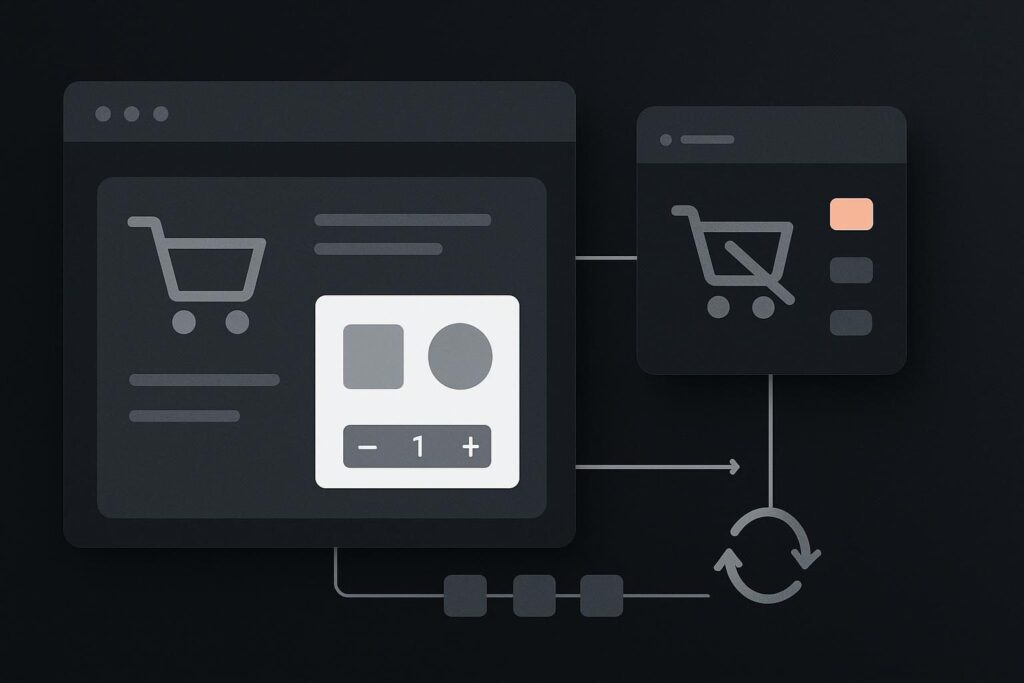
The useful distinction is this: if the cart page has the right products, the add-to-cart operation may be working perfectly well. The broken bit may be the header’s representation of that cart. Confirm the cart contents independently before trying to fix their header representation.
Start by proving which part is wrong
Use a private browser window, add one simple product once, then visit the cart page directly. Check the item, quantity and subtotal there before touching any optimisation setting. Repeat with a product variation if the shop uses them.
If the cart page is correct but the header basket is stale, you are looking at a refresh, script or caching problem. If both are wrong, the investigation shifts towards the add-to-cart request, customer session, product configuration or a custom cart rule.
A WooCommerce mini-cart that does not update after add to cart is usually caused by a stale header component, missing update script, blocked asynchronous request or cache rule. The repair depends on whether the header uses the classic mini-cart widget or the newer Mini-Cart block. These use different mechanisms, so a cart-fragments workaround should not be applied to every header basket.
First teardown: widget or Mini-Cart block?
This is the point many quick fixes skip. They see a stale count, paste a JavaScript refresh snippet from a forum, and sometimes create a second problem for the cart drawer.
Classic mini-cart widgets commonly rely on WooCommerce cart fragments. WooCommerce documents the relevant refresh events and notes that cached pages containing a mini-cart widget can show stale contents. It also changed when the cart-fragments script is enqueued, so an old optimisation rule can leave a header expecting a script that is no longer present. Read WooCommerce’s cart fragments API guidance before treating fragments as a universal answer.
The Mini-Cart block is different. It belongs to the newer block-based WooCommerce approach and should be investigated through its own scripts, requests and theme integration. Do not assume an old cart-fragments event will repair it simply because both components show a basket.
| What you find | What it suggests | Useful next check |
|---|---|---|
| Cart page correct, classic widget stale | Fragment refresh, script loading or cached header output | Inspect browser requests and whether the fragments script loads |
| Cart page correct, Mini-Cart block stale | Block or Store API behaviour, theme integration, cache or script conflict | Inspect block-related requests and console errors |
| Cart page and header both wrong | Add-to-cart, session or product-level issue | Check the add-to-cart response before changing the header |
| Correct when logged in, stale for visitors | Anonymous caching or cookie handling | Compare response behaviour in two clean browser sessions |
The Elementor header example that catches people out
A common setup uses an Elementor header template containing the classic WooCommerce mini-cart widget. The product is added successfully, the cart page reflects it, but an optimisation plugin has delayed, combined or excluded the script responsible for the normal refresh path.
The header then remains stuck until a full page load, or worse, looks different depending on which page the customer visits next. Repeated clicks follow. Customers wonder whether the item was added twice. Some will abandon the route rather than gamble on the checkout total.
Open browser developer tools and run one controlled test. Watch the add-to-cart request, then look for the follow-up request or event relevant to the component in use. Also check the console for script errors. A missing dependency, a deferred script loaded in the wrong order, or an exception from an unrelated header plugin can stop the visible update.
Inspect the refresh path before adding code
- Identify the header component in the theme, page builder or Site Editor.
- Add one product in a clean private session and verify the cart page independently.
- Check whether the relevant JavaScript files load on the product page and where the header appears.
- Inspect network activity after add to cart, including failed or blocked requests.
- Compare logged-in and anonymous behaviour without changing five settings at once.
- Review cache exclusions for cart, checkout, account and any dynamically rendered header basket behaviour.
- Retest add, remove, quantity change and navigation between product, category and cart pages.
Cache configuration deserves a proper look, but repeated full-cache purges are rarely a diagnosis. A cache may be serving an old header shell, ignoring the right WooCommerce cookie, or preserving a page-builder fragment that should vary by cart state. The same sort of distinction matters when WordPress edits appear only after cache layers are checked.
Keep classic-only fixes in their lane
For a classic widget, the relevant work may involve restoring the normal cart-fragments script path, correcting a script optimisation exclusion, or removing a cache rule that stores basket markup for anonymous visitors. That is a targeted repair, based on what the request trail shows.
For a Mini-Cart block, first establish whether the block assets are present, the block is rendered consistently by the theme, and its data requests complete. Replacing it with a classic widget purely to make an old snippet work is usually a backwards repair. It may hide the symptom while leaving the actual conflict in place.
If the stale mini-cart arrived alongside a wider WooCommerce failure after an update, the checks in this WooCommerce checkout repair after an update guide help separate a header-only problem from a checkout route that also needs attention. Where several front-end behaviours have broken together, a broader website repair review for WooCommerce issues is often more sensible than treating each visible symptom as unrelated.
Retest the customer route, not one successful click
Once a change is made, test more than the original add button. Add a product from a product page, remove it from the header, alter quantity in the cart, then continue to another page and return. Test as an anonymous visitor and on a phone. Headers are often built separately for mobile, which is exactly the sort of boring detail that gets missed until someone reports it from a café.
Also check for duplicate behaviour. A header that updates correctly but adds two units after one tap has not been repaired. It has merely changed costume.
Questions about stale WooCommerce header baskets
Why can the cart page be right while the header is wrong?
The cart page and header may be rendered through different templates, scripts and cache rules. The cart data can persist correctly in the customer’s session while the header retains old HTML or fails to receive the front-end update that should redraw the basket count and contents.
Does the classic mini-cart use the same update mechanism as the Mini-Cart block?
Not necessarily. Classic widgets are associated with the cart-fragments mechanism described in WooCommerce guidance. The Mini-Cart block follows the block-based WooCommerce architecture, so its assets and data flow should be checked separately. Applying classic fragment code to a block without evidence is guesswork.
Send the product URL and header-cart behaviour so the affected refresh mechanism can be inspected.