
WooCommerce cart empty after add-to-cart: lost or stale?
A customer clicks add to cart, sees a reassuring little message, then reaches an empty basket or checkout. For a Dubai, UK or Liverpool business taking orders online, that is a sales problem rather than a minor WordPress annoyance.
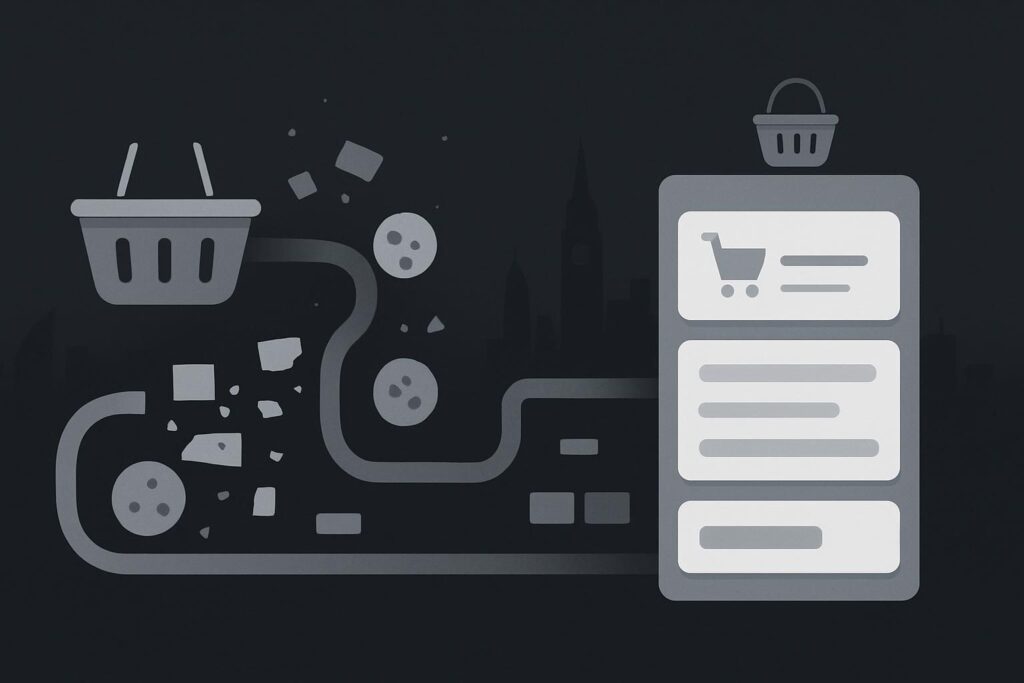
There are two different faults that often get bundled together. The full cart may genuinely be empty because the guest session was not retained. Or the cart still contains the product, while the header badge or mini-cart is showing yesterday’s news. Establish whether the basket was lost before repairing how it is displayed.
Start with the full cart, not the header icon
If the cart page and checkout both contain the added item, the basket has survived. The likely issue is the header display, widget or refresh route. That is covered separately in this guide to a WooCommerce mini-cart header that is not updating.
If the customer adds a product and the full cart page has no line item, treat it as a session, cookie, cache or request-path issue. Do not jump straight to cart fragments, theme JavaScript or a broad cache purge. They may be adjacent to the problem, but they do not prove its cause.
When WooCommerce shows an empty cart after add-to-cart, first repeat the journey as a new guest and check the full cart and checkout. If both are empty, compare the add-to-cart response, WooCommerce session cookies and cache behaviour. If the full cart is correct but the header count is wrong, the basket exists and the display refresh needs separate investigation.
Use one clean guest journey as the decision point
Administrator tests are useful, but they are not a customer test. An administrator may have a persistent login cookie, a different cache bypass, a cart from an earlier visit, or a hosting rule that treats logged-in users differently. This is why a shop can appear normal in the back office while a new visitor cannot buy a thing.
Use a private browser window or a browser profile with no existing site cookies. Then follow one short route:
- Open one product page as a guest.
- Add a single product to the cart.
- Go straight to the full cart page.
- Continue to checkout without logging in or opening another tab.
- Repeat once on a different browser or device if the first result is inconsistent.
Keep the test boring. One product, one guest, one route. Adding five variations, changing shipping methods and opening the page in three tabs only muddies the water.
Read the result before changing anything
| What the guest sees | What it suggests | Useful next check |
|---|---|---|
| Full cart and checkout are empty | The basket may not be persisting between requests | Inspect session cookies, add-to-cart response and cache exclusions |
| Full cart works, header basket is empty | The basket exists but the header is stale | Check the header component and its refresh behaviour |
| Cart works until checkout | A later route, redirect or checkout conflict may be involved | Compare the transition from cart to checkout and recent changes |
| Only logged-out visitors fail | Guest sessions, cookie consent or caching deserve attention | Compare guest and logged-in response headers and cookies |
A representative example is a new guest adding one product successfully. The product page responds as though it has worked, but the full cart shows no items. Meanwhile, an administrator sees a normal basket. That points away from a simple header refresh fault and towards the different conditions applied to anonymous visitors.
Check the add-to-cart handover
The add-to-cart action should leave enough evidence to follow. Depending on the shop setup, it may use a normal page request, a redirect, or an asynchronous request handled by WooCommerce and the theme. The practical question is whether the response creates or retains the guest session before the next page request asks for the cart.
Look for unexpected redirects between the product page and cart, errors returned by the request, and whether the browser receives relevant WooCommerce session cookies. A cookie banner can complicate matters if it blocks or delays necessary cookies until after the add-to-cart action. So can a security layer, hostname mismatch, or a cached response being served to a guest.
Do not edit session tables or turn off every plugin because one guest journey failed. Record the product URL, the time, the browser state, the cart URL and the point at which the item disappeared. That gives a developer or host something useful to inspect rather than a vague report that the shop is broken.
Cache rules matter, but they are not a verdict
WooCommerce’s own caching guidance says customer-specific Cart, Checkout and My Account routes should be excluded from page caching, and it describes cookie exclusions relevant to WooCommerce visitors. That is a sound investigation point, particularly where logged-in staff can buy but guests cannot.
It does not mean every empty cart is caused by cache settings. A plugin update during business hours, a custom redirect, a consent tool or a theme override can produce similar symptoms. Check the actual cache configuration and the request behaviour before declaring the cache guilty.
If the failure began after a release, compare recent changes with the cart-to-checkout route. A focused WooCommerce checkout repair after an update may be relevant when the cart persists but the next stage collapses or redirects incorrectly.
Verify continuity from product to payment
The repair is only credible once the same clean guest session can add a product, view it in the full cart, reach checkout and retain it through the checkout page. Check on mobile too. Mobile browsers can expose cookie and redirect oddities that an office desktop conveniently avoids.
For a wider issue involving cache configuration, theme customisation, plugin conflicts or hosting behaviour, it may need a more structured WordPress website repair review rather than another round of hopeful settings changes.
Send a reproducible guest add-to-cart route so the basket state can be checked through checkout.