
WooCommerce emails missing? The order is not proof
A paid WooCommerce order appearing in the dashboard is reassuring for about eight seconds. Then someone asks why the sales inbox got nothing, the customer got nothing, and the store owner in Dubai is now wondering how many orders have been quietly passing through without anyone being told.
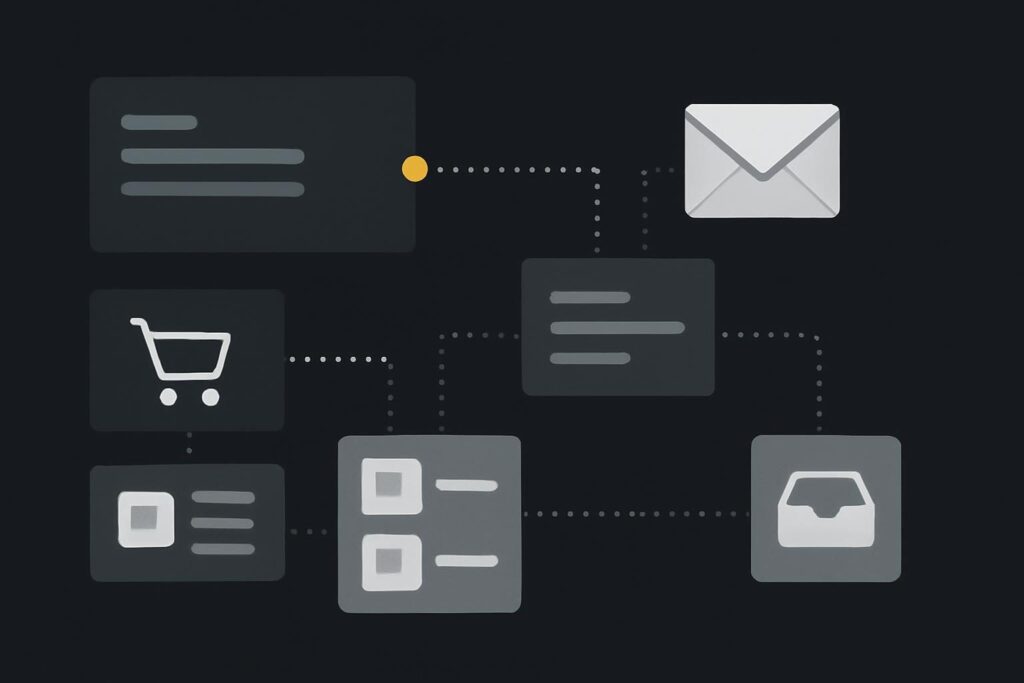
Not ideal.
WooCommerce emails not sending usually means the order process and the email delivery process have split apart. WooCommerce can create the order, record payment and update the order status while WordPress mail, SMTP, DNS authentication, a transactional email service or the recipient inbox fails somewhere else. In WordPress website development, you diagnose this by following one message from WooCommerce to the recipient, not by staring at the order status.
The false comfort of a completed order
The mistaken assumption is simple: a completed or processing order proves WooCommerce email is working.
It doesn’t.
Order creation is one job. Email delivery is another. They often happen close together, so people treat them as the same event. That is usually where the fun starts.
A common scenario: the store changes its sender domain from an old Gmail-style setup to a proper company domain. Orders still appear in WooCommerce. Payments still clear. But the admin new order email never reaches sales, and the customer does not receive the processing order email. The dashboard looks healthy, so everyone starts blaming the email template.
The template might be ugly. It might not be the criminal.
Field note: follow the message path
On a WooCommerce store, the path is usually:
- WooCommerce decides which email should be triggered for the order status.
- WordPress attempts to send the message using its mail function or configured SMTP plugin.
- The SMTP or transactional email service accepts, rejects or delays the message.
- DNS records such as SPF, DKIM and DMARC influence whether the receiving mail server trusts it.
- The recipient inbox receives, filters, quarantines, bounces or silently drops it.
Each step can fail independently. A paid order does not inspect your SPF record. WooCommerce does not know that the office inbox has a strict Microsoft 365 quarantine policy. WordPress does not automatically prove that the recipient’s mail server accepted the message.
Before rebuilding your website, before changing every WooCommerce email template, and definitely before installing three more mail plugins at 4.45pm, trace one missing message properly.
The WooCommerce email-delivery matrix
When investigating this kind of issue, I like using a delivery matrix across several WooCommerce message types. It stops the conversation turning into vague misery.
| WooCommerce message | Typical trigger | Recipient to verify | What to check |
|---|---|---|---|
| New order | Order received by store | Admin or sales inbox | Email enabled, recipient address, SMTP log, spam and quarantine |
| Processing order | Paid order moves to processing | Customer billing email | Customer address, status change, mail log, delivery result |
| Completed order | Order marked completed | Customer billing email | Manual status change, template enabled, SMTP acceptance |
| Customer invoice | Manual invoice or payment request | Customer billing email | Manual send action, sender identity, recipient filtering |
This matrix gives you evidence. If admin emails fail but customer emails work, the issue may be the recipient inbox, admin address or routing rule. If every email fails after a sender-domain change, look at SMTP credentials and DNS authentication. If only completed order emails fail, check whether that email is enabled and whether the order status is actually reaching completed.
For stores where orders or customer messages are already being missed, the diagnostic approach used in website repair work for Dubai WordPress sites is the right shape of work: isolate the failure, preserve useful evidence, and avoid random live-site changes until you know what changed.
What to check before touching the templates
1. Confirm the WooCommerce email is enabled
Go to WooCommerce email settings and check the specific message type. New order, processing order and completed order are separate emails. One can be enabled while another is disabled or pointed at an old inbox.
Boring detail, but it catches people: the admin new order email may still be going to an accounts@ address nobody has monitored since the office moved domains.
2. Check the order note history
Order notes can show status changes and sometimes email events, depending on the setup. They won’t prove inbox delivery, but they can show whether WooCommerce attempted to trigger the message.
If the order never moved from pending payment to processing, do not chase the completed order email. It had no reason to fire.
3. Use mail logs, not hope
A WordPress mail logging plugin or your SMTP provider’s dashboard can show whether the message was generated, accepted, rejected or bounced. Without logs, you are guessing with a nicer dashboard.
Look for the specific order number, recipient address, subject pattern and timestamp. If the log says sent, that still means sent to the next mail service, not guaranteed read by the customer.
4. Review SMTP and DNS after sender-domain changes
If the problem started after changing the sender domain, check SMTP host, port, encryption method, username, from address alignment, SPF, DKIM and DMARC. A mismatch between the from address and authenticated sender can cause rejections or poor deliverability.
Example: WooCommerce sends from [email protected], but SMTP is still authenticated through an old domain mailbox. Some receiving servers will tolerate it. Others will bin it without much ceremony.
5. Check the recipient side
Ask the customer or sales team to check spam, junk, quarantine and mail rules. For Microsoft 365 or Google Workspace, the admin message trace can be more useful than a quick look in the inbox.
A form that says thanks but sends nothing is not working. Same idea here: an order that says paid does not prove the message arrived.
Where maintenance fits
This is not only a repair issue. WooCommerce email delivery should be part of practical store maintenance, especially after domain changes, hosting changes, plugin updates, checkout changes or payment gateway updates.
A sensible WordPress maintenance setup for Dubai businesses should include basic checks on transactional emails, backups, updates, logs and the bits customers actually rely on. It cannot guarantee nothing will ever fail, but it can reduce the odds of failures sitting unnoticed for weeks.
The recommendation
Pick one missing order email. One. Use the order number, the expected message type, the recipient address and the timestamp. Then trace it through WooCommerce settings, WordPress mail, SMTP or transactional logs, DNS authentication and recipient filtering.
Do that before changing the email design, swapping themes or blaming the plugin standing closest to the scene of the crime.
FAQs
Why are WooCommerce order emails not sending?
WooCommerce order emails can fail because the email is disabled, the recipient is wrong, WordPress mail is unreliable, SMTP is misconfigured, DNS authentication is missing, or the receiving inbox rejects or filters the message. Start with one order number and trace the message path step by step.
Can a WooCommerce order be paid if the customer email fails?
Yes. Payment and email delivery are separate processes. WooCommerce can record a paid order and update the order status while the customer confirmation email fails later through WordPress mail, SMTP, DNS or recipient filtering. The paid order is not proof of email delivery.
Do I need SMTP for a WordPress WooCommerce website?
Most WooCommerce stores are better using authenticated SMTP or a transactional email service rather than relying on basic WordPress mail. SMTP is not magic, but it gives clearer authentication, better logging and a more reliable route for order messages when configured properly.
Should Dubai businesses treat this as website repair or maintenance?
If orders are already being missed, treat it as website repair first. Find the failure and stop changing random settings. Once delivery is working, add WooCommerce email checks to regular website maintenance, especially after domain, hosting, payment gateway or plugin changes.
Trace one missing order email from WooCommerce to the recipient before changing templates. If you want a second pair of eyes on the route, message Standish Services on WhatsApp and we can look at the practical failure points without turning it into a grand rebuild for no good reason.