
WordPress allowed memory size exhausted: find the load
A WordPress allowed memory size exhausted message means a PHP script tried to allocate more memory than it was permitted to use. It tells you that a request met a resource boundary, but it does not tell you whether the boundary is too low or the request is doing something daft.
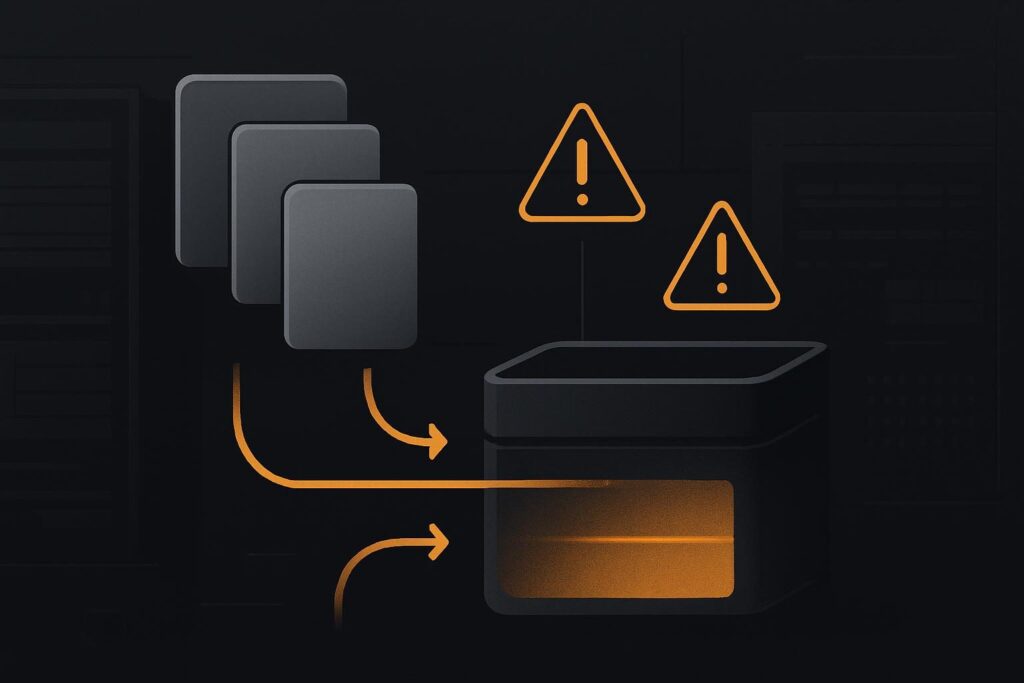
That distinction matters for business sites in Dubai, the UAE and the UK. Raising the limit may get one import moving, but it can also hide an inefficient process while the server keeps carrying a heavier workload than it needs to.
Picture a WooCommerce shop importing a large batch of products. Ordinary pages load, staff can edit a product or two, and checkout is fine. Then a bulk import stops with a fatal error after processing several hundred rows. The answer may be more memory, but it may equally be an import file with oversized images, repeated variations, a custom field routine retaining data, or a plugin trying to process the entire batch in one go.
The message names the ceiling, not the culprit
PHP defines memory_limit as the maximum memory a script may allocate. There is no universal figure that suits every WordPress installation, plugin combination or workload.
A WordPress allowed memory size exhausted error should therefore be read as a three-part clue: which request failed, what PHP limit applied to that request, and what the request was trying to do at the time. A sensible repair sets enough capacity for a legitimate bounded job, while correcting code or process behaviour that grows without a sensible boundary.
The final file named in a fatal error is useful, but it is not a conviction. It may be the place PHP ran out of room, not the earlier operation that kept adding data to memory.
Read the fatal error as an incident record
Copy the complete fatal-error line before changing settings. It commonly includes the exhausted byte count, the attempted allocation and a file path with line number. Pair it with the exact action that triggered it: importing products, saving a page, regenerating thumbnails, sending a scheduled report, running a backup or processing an API request.
Then look around the same timestamp in the PHP error log and WordPress debug log, if available. A practical detail often missed in a hurry: note whether the job ran through wp-admin, a cron request, WP-CLI or a hosting backup process. Those routes may not use the same PHP configuration.
- Record the full fatal-error text and timestamp.
- Record the user action, batch size and file involved.
- Note whether the request was web-based, scheduled or command-line.
- Check what changed shortly before the issue began, including plugin updates and new import mappings.
- Keep one failed example intact rather than repeatedly retrying it with different settings.
If the failure followed a PHP upgrade or presents as a broader server error, the process of reading the surrounding log evidence is covered in our guide to reading WordPress 500 errors after a PHP update. The task here is narrower: find the workload consuming memory.
Why WordPress settings can disagree with PHP
WordPress constants such as WP_MEMORY_LIMIT and WP_MAX_MEMORY_LIMIT can request more memory for WordPress, but they cannot override a hosting account’s hard PHP limit. A value in wp-config.php is not proof that the failing request received that value.
Hosting control panels may apply different settings by domain, PHP version, directory, pool or execution method. A web request could have one effective limit while WP-CLI uses the server’s command-line php.ini, and a scheduled task may run under another configuration again. Checking the effective value in the failing runtime saves a fair bit of blind fiddling.
A developer can confirm this through the relevant PHP configuration, application diagnostics or a controlled runtime check. Do not leave a public phpinfo file on a live site just to inspect a setting. It is a handy shortcut until it becomes somebody else’s reconnaissance material.
Separate a large job from abnormal growth
Some tasks genuinely need more memory. Importing a catalogue with image handling, variable products and custom fields asks more of a server than loading a normal service page. If a controlled import of 50 products succeeds but 500 fails, splitting the import may be the safer operational decision.
Batch splitting is sensible when each smaller batch completes consistently, the data is valid, and memory use appears to reset between jobs. It is not a cure if memory rises sharply even on modest batches, or if editing one ordinary page produces the same fatal error. That points more towards a loop, a poorly behaved integration, inefficient custom code or a task retaining data it should release.
Use a bounded test, not a heroic retry
Take a copy of the import file and test a small batch in a staging copy where practical. Keep the product type, images and field mapping representative. If 25 items complete, try a slightly larger batch. If the job always fails around the same row, inspect that record for unusually large image files, malformed data, excessive variations or an awkward custom field payload.
Size the workload as well as the ceiling. A reasonable memory increase for a known, finite import can be justified. An unlimited limit is not a repair plan. It merely gives a runaway request more room to make a mess.
Choose the repair route based on what the evidence shows
There are two broad decisions. Capacity is the issue when the task is legitimate, finite and repeatable, but the current effective limit is too low for it. In that case, agree a bounded PHP limit with the host or development team, then rerun the job in manageable batches and watch the result.
The work is faulty when memory consumption is disproportionate, increases without a clear endpoint, or happens during routine edits and normal customer requests. That calls for isolating the plugin, theme function, import mapping or custom integration responsible. Broader website repair support is useful when the error sits alongside failed admin actions, recurring critical errors or unstable updates, as outlined in this WordPress critical error repair checklist.
For a busy service business, the commercial issue is straightforward. Staff should not have to keep nursing imports, avoiding page edits or hoping a customer request does not land on the expensive code path. A stable WordPress setup needs enough capacity for planned work and enough discipline to remove wasteful work.
What to send when the job needs scoping
A useful handover contains the full fatal error, the time it occurred, the action that caused it, the effective PHP limit for that runtime, and any relevant batch size or import file details. Add recent plugin, theme or PHP changes if you know them. That gives someone a route into diagnosis instead of a vague report that the site has gone funny.
If the error is part of a wider reliability problem, our website repair support for Dubai businesses explains the sort of technical issues that need a more joined-up review rather than another isolated settings change.
Provide the fatal-error text and the action that triggers it so the failing workload can be scoped. That is usually enough to decide whether you need more capacity, smaller batches or a correction to the work itself.