
WordPress backup recovery drill: prove the restore
The backup dashboard says successful. The departed developer holds the hosting login, the backup platform password is in an old inbox, and nobody is fully sure whether the database sits in the same backup as the files.
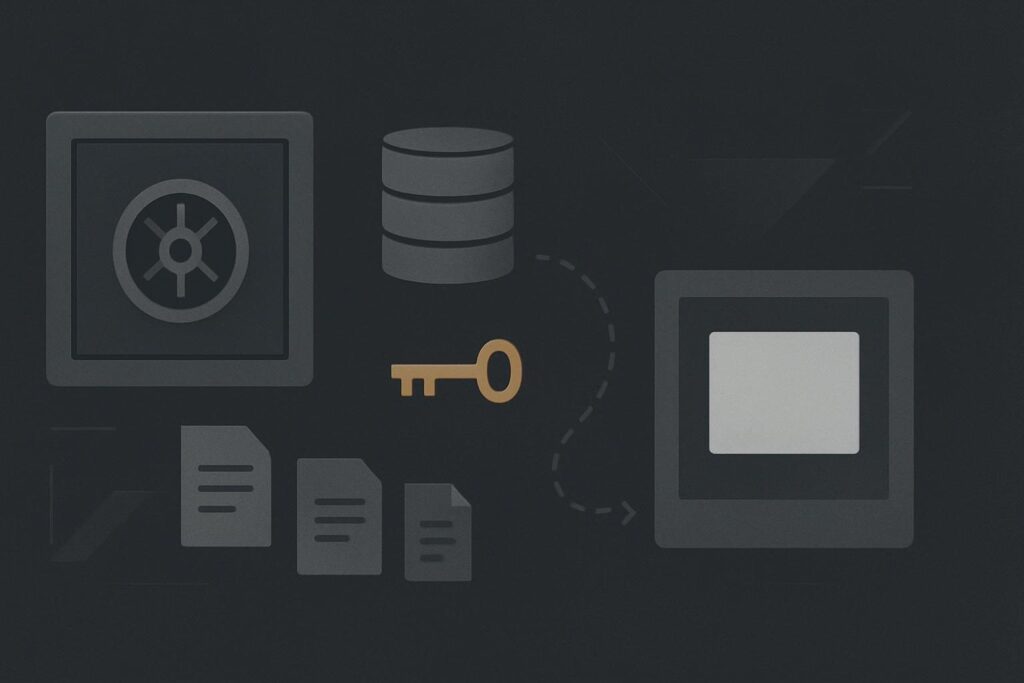
That is a fairly ordinary WordPress maintenance problem for a Dubai or UK business, especially after an agency handover. Daily backups are useful, but a green tick only confirms that a scheduled job completed. It does not confirm that the business can recover its website, contact forms, content and critical customer routes during an outage.
A proper WordPress backup recovery drill restores a recent backup into a safe separate environment, checks the restored site works, and records what was needed to get there. It should test backup files, database recovery, access credentials, configuration, ownership and the customer journeys that matter to the business. The result is evidence of a recovery route, along with a list of gaps to fix before a real incident forces the issue.
A successful backup job is not a recovery plan
The tempting assumption is simple: the backup provider says the job passed, so recovery is covered. It is understandable, but incomplete.
A WordPress site is a collection of moving parts. There are application files, a database, uploads, hosting access, DNS settings, email delivery settings, licences and often third-party services such as payment gateways or booking tools. A restore can fail because one of those parts is missing, inaccessible or configured differently in the new environment.
Broader WordPress maintenance support for business websites should include backups, updates and checks around ownership. The restore rehearsal is the bit that tells you whether those separate tasks join up under pressure.
Set up the drill without putting production at risk
Do not run the first test by restoring over the live site. That is an expensive way to discover what the backup contains.
Create a separate, non-public environment with a different database and clear access controls. It might be staging on the host, a temporary server or an isolated local environment for a simpler site. The key point is that it cannot overwrite the production database, send customer emails or accept real orders.
- Choose a restore point. Pick a recent backup that represents what you would realistically rely on after a fault, rather than selecting an unusually tidy old copy.
- Collect the recovery route first. Identify hosting access, backup platform access, WordPress administrator access, database credentials and the person authorised to make decisions.
- Restore files and database separately where possible. This shows whether one backup is incomplete or whether the restore process needs both components in a particular order.
- Block outgoing email and payments. A restored form should not send test enquiries into the sales inbox, and a restored store should not charge anyone.
- Record what took effort. A recovery drill is partly technical and partly administrative. Both sorts of delay count during a real outage.
One boring detail regularly catches people out: the restored database may contain the live site URL, while the staging copy uses another address. If search-and-replace, configuration constants or caching rules are not handled carefully, the restored site can redirect back to production or load broken assets. That does not automatically mean the backup failed, but it does mean the recovery instructions need work.
Audit the journeys customers would notice first
Getting the homepage to load is a start, not the finish line. The drill should follow the routes that would matter if the live site disappeared for a day.
For a service business, that normally means opening key service pages, testing mobile navigation, checking a contact form, confirming the form has a valid destination, and reviewing any WhatsApp, phone and booking links. A success message on a form does not prove delivery. In a safe test environment, check the configured recipient and, where appropriate, use a controlled test mailbox rather than assuming the old SMTP setup carried across.
For an ecommerce site, add a product to the basket, reach checkout without completing a live payment, and check account, order and stock-related behaviour. For a clinic, property business or consultancy, test the enquiry route that a serious prospect is likely to use, rather than spending an hour admiring the footer.
A practical agency scenario
An agency sees daily green backup ticks after a client reports a damaged site. The team can download an archive but cannot locate the hosting login, the backup account is tied to a former developer’s email address, and the database export is not where they expected it to be.
The technical restore may still be possible. The decision is now slower, though, and every guess adds risk. This is why recovery ownership needs documenting alongside the technical procedure. If a site has changed hands, use a WordPress website takeover ownership checklist to identify the accounts and permissions that could hold up a repair.
WordPress backup restoration rehearsal diagnostic checklist
- Confirm which system creates the backup and who owns the account.
- Check that the chosen restore point includes WordPress files, uploads and the database.
- Verify access to hosting, control panel, SFTP or file manager, database tools and DNS where relevant.
- Restore to a separate environment without touching production.
- Confirm the restored site uses the correct temporary URL and does not redirect visitors to live pages.
- Check core templates, admin login, media uploads, menus and critical plugins.
- Trace one realistic customer journey, including form, booking or checkout behaviour.
- Prevent test emails, orders and notifications from reaching real customers or staff.
- Write down elapsed time, blockers, missing credentials and the person responsible for each gap.
- Agree what would need approval before a real restore goes ahead.
If you already produce maintenance evidence, a WordPress maintenance report with practical evidence can provide useful context around completed work. Keep the recovery drill as its own check, though. An update record and a backup log do not demonstrate that the business can restore the site.
What the rehearsal can and cannot prove
A successful drill gives you a much firmer picture of one restore route at one point in time. It can reveal a missing database, old credentials, unexpected configuration dependencies and unclear ownership. It cannot guarantee that every future incident will follow the same pattern, or that a backup from months later will behave identically after major hosting, plugin or PHP changes.
The sensible response is to keep the notes, assign the gaps and repeat the drill after significant platform changes, ownership changes or a serious rebuild. Recovery is a process that drifts if nobody looks after it.
Ask Standish Services to trace the problem and scope a practical fix. We can review the real user journey and underlying WordPress setup before suggesting a repair route.