
WordPress changes only visible when logged in?
You open the same page twice. In the administrator session, the enquiry button says the new thing and points to the new route. In an anonymous browser session, the same URL still carries the old button, using the same HTML marker you were asked to check.
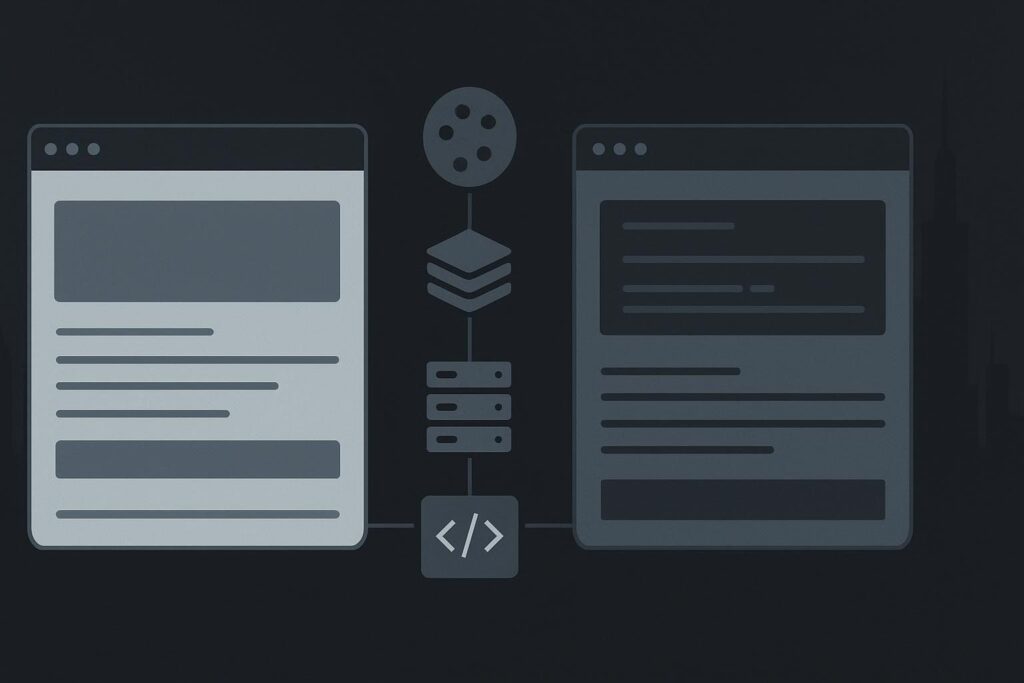
That is not a content approval problem. It is a response comparison problem.
For a Dubai consultancy, this can mean the owner approves a revised enquiry button while logged in, then a prospective client using a private browser still receives the previous button. The page has one URL, but it is not necessarily serving one version of the page.
Compare the customer response, not the WordPress preview
When WordPress changes are only visible when logged in, the usual cause is that authenticated and anonymous visitors receive different HTML, cache behaviour or template conditions. A logged-in browser often carries cookies that alter the request, while a public visitor may receive a stored page from a page cache, CDN or hosting cache. Compare the same URL in both sessions before changing the copy, page builder layout or plugin settings again.
WordPress itself documents Nginx cache examples that bypass cached pages when a wordpress_logged_in cookie is present. That is a configuration-specific example, rather than proof that every hosting setup works the same way, but it explains why an administrator and visitor can receive different responses. See the WordPress Nginx cache configuration guidance for the relevant cookie-based rules.
The mistaken assumption is understandable: you edit the page, WordPress shows the new version, so surely the customer sees it too. But the logged-in view is evidence of what WordPress generated for your session. It is not automatically evidence of the public response.
Set up a two-session comparison
Use the exact same page URL. Do not compare the editor preview with the live page, and do not rely on a screenshot sent in a WhatsApp thread after three people have refreshed it differently.
- Open the URL while logged in as the administrator.
- Open the identical URL in a private window, separate browser profile or clean device with no WordPress login cookie.
- Choose one stable HTML marker for the changed element, such as a unique button class, destination URL, heading fragment or data attribute.
- View page source or inspect the response in both sessions and record whether that marker is present.
- Record request cookies and response headers, particularly cache-related headers such as cache status, age, vary, CDN headers or server cache headers.
A boring but useful detail: check the button destination in the rendered HTML, not only the visible label. A page builder can show the new wording while an older cached HTML response still sends visitors to an obsolete contact form, old WhatsApp number or retired enquiry route.
The evidence matrix that stops repeated edits
| Check | Logged-in session | Anonymous session | What the difference suggests |
|---|---|---|---|
| Changed HTML marker | New marker present | Old marker present | Different HTML responses, often cache or conditional template output |
| Visible styling | New colour or spacing | Old styling only | Could be CSS, but inspect HTML before deciding |
| Cookies | WordPress login cookie present | No login cookie | Cookie-based cache bypass or visibility rule is plausible |
| Response headers | Cache bypass or private response | Cache hit, age or CDN response | Public cache may still hold the old response |
| Template conditions | Administrator role available | Public visitor state | Membership, role, device or visibility logic may be involved |
Old HTML and old CSS are different jobs
If the anonymous page source contains the old button label or old link, the visitor is receiving stale or conditional HTML. Clearing the browser cache alone is unlikely to settle that. Trace the cache rule, purge route and any server or CDN cache holding that response.
If both sessions contain the same new HTML but one looks different, the issue may be CSS, a delayed stylesheet, a mobile breakpoint, a browser asset cache or JavaScript changing the page after load. That is still worth fixing, but it is a different fault. Treating CSS-only differences as stale page HTML wastes an afternoon fairly efficiently.
For a wider look at page, browser, server and CDN cache behaviour, use the guide to WordPress edits not showing across cache layers. Keep the immediate test narrow first: are customers receiving old HTML, or merely seeing the same HTML styled differently?
Inspect the rule before purging everything
Once the comparison proves a response difference, inspect the smallest relevant rule. Common places include a hosting cache exclusion list, CDN cache rule, Nginx configuration, optimisation plugin, page builder template condition, membership plugin, geo-targeting tool or custom code checking user roles or cookies.
A logged-in-only difference can also arise where an administrator bar, role condition or membership rule changes which template loads. If the anonymous response is not cached but still has different HTML, look for conditional display logic rather than repeatedly purging caches.
This is the same family of problem covered in website works for me but not customers troubleshooting: one person has a session, device, cookie set or permission level that masks what the public actually gets.
Make one targeted correction, then retest both routes
Correct the proven cause. That might mean purging a specific page at the relevant cache layer, excluding a genuinely dynamic route from caching, fixing a stale CDN rule, or correcting a template condition that should not vary by login state.
Then rerun the same two-session test. Check the HTML marker, button destination and response headers again. Do not mark the job complete because the administrator view looks right. Approve changes against the anonymous response customers actually receive.
If the evidence points beyond one cached page, or the public response keeps changing without a clear owner, it may need a broader WordPress website repair review in Dubai. At that stage, the useful handover is the URL, the changed marker, both screenshots, the response headers and a note of which session saw what.
Questions that come up during this check
Why can an incognito window still show old content?
Private browsing removes most existing browser cookies, but it does not bypass a hosting cache, CDN cache or cached public HTML response. It can also reuse the same network route and receive the same public cached object. Compare the page source and response headers rather than treating incognito mode as a full cache purge.
Can a membership or visibility rule explain the difference?
Yes. Membership plugins, role-based content tools, page builder conditions and custom code can deliberately serve different output to logged-in users, subscribers, administrators or public visitors. If the anonymous response is consistently different without cache-hit evidence, inspect template and visibility conditions before changing the page content.
If customers still see an old offer, contact detail or enquiry route after you have approved the edit, send the URL and the changed element so Standish Services can compare the public and administrator responses.