
WordPress maintenance: test the Liverpool checkout
A WooCommerce store in Liverpool can pass its WordPress updates and still lose orders. Not dramatically. Quietly. The homepage loads, wp-admin gives you green notices, the product pages look respectable, and somewhere around mobile address validation the payment step gives up. Lovely.
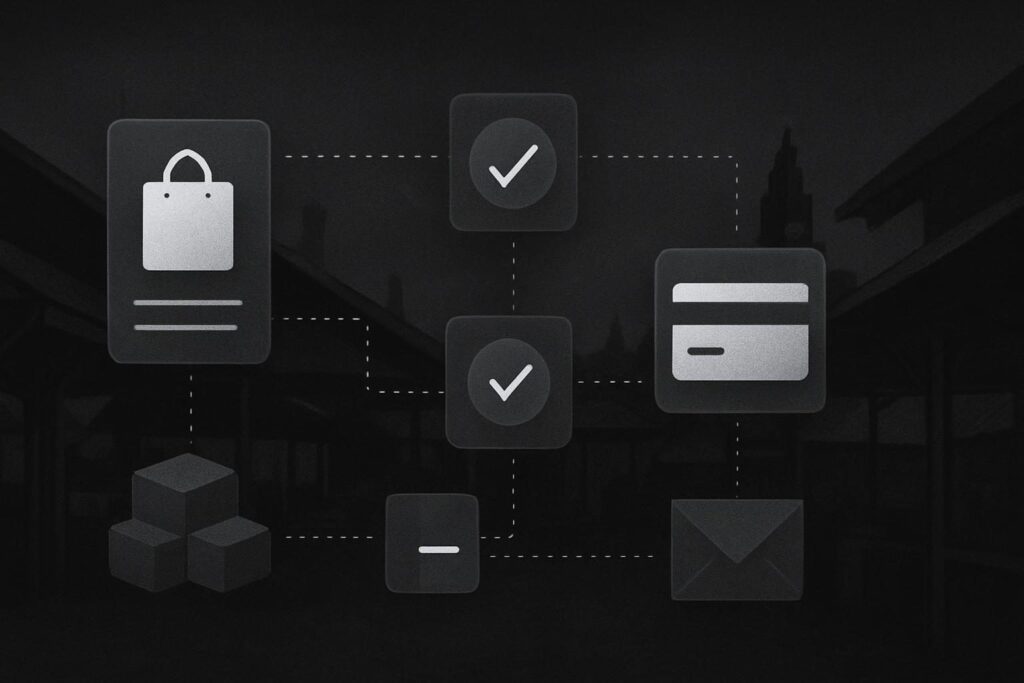
WooCommerce WordPress maintenance should include an end-to-end test order, not only plugin updates. A proper check follows the customer from product selection through basket, checkout, payment, stock reduction, order emails and fulfilment notes. The useful question is simple: can a customer buy, and can the business process the order correctly afterwards?
The false assumption is that green update notices mean the shop is maintained. They do not. They mean an update process completed. That is a different thing.
The maintenance standard: follow the money
For ecommerce, maintenance should follow the money from product to fulfilment. If the order journey breaks, the rest is decoration.
This is where WooCommerce differs from a brochure website. A brochure site mainly needs pages, forms, speed, security basics and clear messaging. A WooCommerce site also has to deal with baskets, stock, payment gateways, shipping logic, tax settings, emails, refunds, account areas and third party extensions. There are more moving parts, so there are more quiet ways to fail.
One common Liverpool retailer scenario: a gateway extension gets updated during a normal maintenance session. Desktop checkout still works. Mobile checkout starts failing after address validation because a field dependency no longer behaves properly with the theme or checkout plugin. The admin screen says the update was successful. Customers see a checkout that does not complete. That is usually where the fun starts.
For ongoing support, our WordPress maintenance in Liverpool is built around practical checks like this, because a maintenance report with no order test is only half a report for ecommerce.
WooCommerce test-order maintenance checklist
Use this checklist after WooCommerce updates, payment gateway updates, shipping plugin changes, theme updates, PHP version changes, checkout edits, caching changes or any work on order emails. Especially before another plugin update breaks something you did not know was fragile.
| Checkpoint | What to test | Why it matters |
|---|---|---|
| Staging copy | Run updates on a staging copy first where possible, with a recent database and the same key plugins enabled. | A clean update in wp-admin does not prove the live customer journey is safe. |
| Product page | Add a simple product and, if relevant, a variable product with sizes, colours or options. | Variation logic often fails differently from simple product logic. |
| Basket | Change quantities, remove an item, apply a valid coupon and test an invalid coupon. | Discount and basket scripts can be affected by caching or theme changes. |
| Mobile checkout | Complete checkout on a real phone, not only a desktop browser resized to mobile width. | Mobile keyboards, address fields and payment frames can behave differently. |
| Payment gateway | Use the gateway test mode or a controlled low-value live order where appropriate. | The payment screen is where many commercial failures hide. |
| Stock handling | Check stock reduces correctly, backorders behave as intended and out-of-stock products cannot be bought if they should not be. | Bad stock logic creates fulfilment problems after the order appears to succeed. |
| Order emails | Confirm customer and admin emails arrive in the right inbox, not an old inbox, spam folder or abandoned mailbox. | A form or checkout success message does not prove email delivery. It is just being polite about failing. |
| Fulfilment view | Open the order in WooCommerce admin and check shipping address, notes, payment status and product details. | The customer can pay while the business still receives unusable order information. |
Do not test only the homepage
The homepage is usually the least interesting part of WooCommerce maintenance. It is important, yes, but it is not where the transaction happens.
After updates, check the pages and actions that make money or cause support tickets:
- Product page add-to-basket buttons
- Variation dropdowns and stock messages
- Basket totals and coupon behaviour
- Checkout fields on mobile
- Payment gateway loading and confirmation
- Order status inside WooCommerce
- Admin and customer email notifications
- Shipping method rules
- Account login, password reset and order history if customers use accounts
A boring detail worth checking: email sending. If WooCommerce emails are being sent through default PHP mail, delivery can be patchy depending on hosting and domain settings. SMTP configuration, sender authentication and the receiving inbox all matter. You do not need to turn this into a massive email project, but pretending it is irrelevant is asking for a quiet mess.
When staging is worth the extra step
Some shop owners skip staging because they want updates done quickly. Fair enough, but speed is not the only risk.
Staging is especially sensible when the site uses a custom checkout, subscriptions, bookings, wholesale pricing, complex shipping, multilingual plugins, heavy caching or a payment gateway extension that has recently changed. The plugin might be guilty. It might also just be standing closest to the scene of the crime.
A staging copy lets you update, test and spot obvious problems without turning the live checkout into the experiment. It is not perfect. Payment gateways, webhooks and live emails may still need careful live checks. But it reduces the chance of discovering the issue from an annoyed customer.
If the store has grown past a basic setup, it may also need cleaner WooCommerce development rather than endless patching. For that sort of work, WooCommerce and WordPress development in Liverpool can be a better route than stacking another plugin on top of the last workaround.
A proportionate maintenance routine
Not every WooCommerce store needs a huge enterprise process. A local Liverpool retailer, food business, clothing shop or specialist supplier usually needs something practical and repeatable.
A sensible routine looks like this:
- Create or confirm a recent backup before changes.
- Run updates on staging where the risk justifies it.
- Check the change log for WooCommerce, the gateway and checkout-related plugins.
- Update the smallest sensible group of plugins, rather than everything blindly.
- Clear relevant caches after updates.
- Place a complete test order on desktop and mobile.
- Confirm payment status, stock change, order details and emails.
- Record what changed, what was tested and anything that needs follow-up.
Stop changing things until you know what changed first. That one habit saves a lot of detective work later.
What a failed test order can tell you
A failed test order is annoying, but it is useful. It narrows the problem.
- If the basket fails, check theme scripts, AJAX fragments, cache exclusions and recent product plugin updates.
- If checkout fields fail, check address validation, custom field plugins and mobile layout conflicts.
- If payment fails, check gateway settings, webhook status, currency settings, SSL behaviour and plugin compatibility.
- If emails fail, check SMTP, sender address, DNS authentication, spam filtering and whether the admin email is still monitored.
- If stock does not change, check WooCommerce stock settings, product-level stock rules and order status transitions.
None of this means a shop can be guaranteed never to break. WordPress maintenance reduces avoidable risk, improves visibility of faults and keeps the setup under control. Outcomes still depend on the site, hosting, plugins, traffic patterns, commercial setup and the quality of previous work.
FAQs
How often should a Liverpool WooCommerce store run test orders?
Run a test order after WooCommerce updates, gateway updates, checkout changes, shipping changes, theme updates and major caching changes. For active stores, a regular monthly test is sensible. Busy stores may need more frequent checks, especially if orders are time-sensitive or stock accuracy matters.
Do WordPress plugin updates prove my WooCommerce website is maintained?
No. Plugin updates are part of WordPress maintenance, but they are not proof the commercial journey works. A WooCommerce update can complete cleanly while checkout, payment confirmation, stock reduction or order emails fail later. Maintenance should test the transaction, not only the admin update screen.
Should WooCommerce updates be done on staging first?
Often, yes. Staging is useful when the store has payment gateways, custom checkout fields, subscriptions, bookings, complex shipping or heavy plugin dependencies. Some live checks may still be needed, especially for payment webhooks and emails, but staging reduces the risk of testing everything on paying customers.
Why do WooCommerce order emails stop arriving?
Order emails can fail because of hosting mail limits, poor SMTP setup, DNS authentication issues, spam filtering, changed admin addresses or plugin conflicts. Also check the obvious: the inbox might be old, full or no longer monitored. A checkout success message does not confirm email delivery.
Can website maintenance fix every WooCommerce checkout problem?
Maintenance can catch many preventable issues and keep the setup healthier, but it cannot guarantee nothing will ever fail. Some problems need repair, plugin replacement, hosting changes or proper WordPress development. The first job is to identify where the order journey breaks and avoid random panic fixes.
Test the order before trusting the update
Green notices are nice. Orders are better.
If you are responsible for a WooCommerce store in Liverpool, the smallest sensible next action is to place a complete test order and check what happens after the payment step. Product, basket, checkout, payment, stock, emails and fulfilment. The lot.
Email Standish Services if you want a practical WooCommerce maintenance check without the theatre. Test a complete order journey before assuming the store is healthy.