
WordPress page repair starts with the nearest twin
You may be measuring the wrong thing. One service page has gone sideways, so the instinct is to inspect every plugin, update the theme, question the host and generally start pulling wires out of the wall.
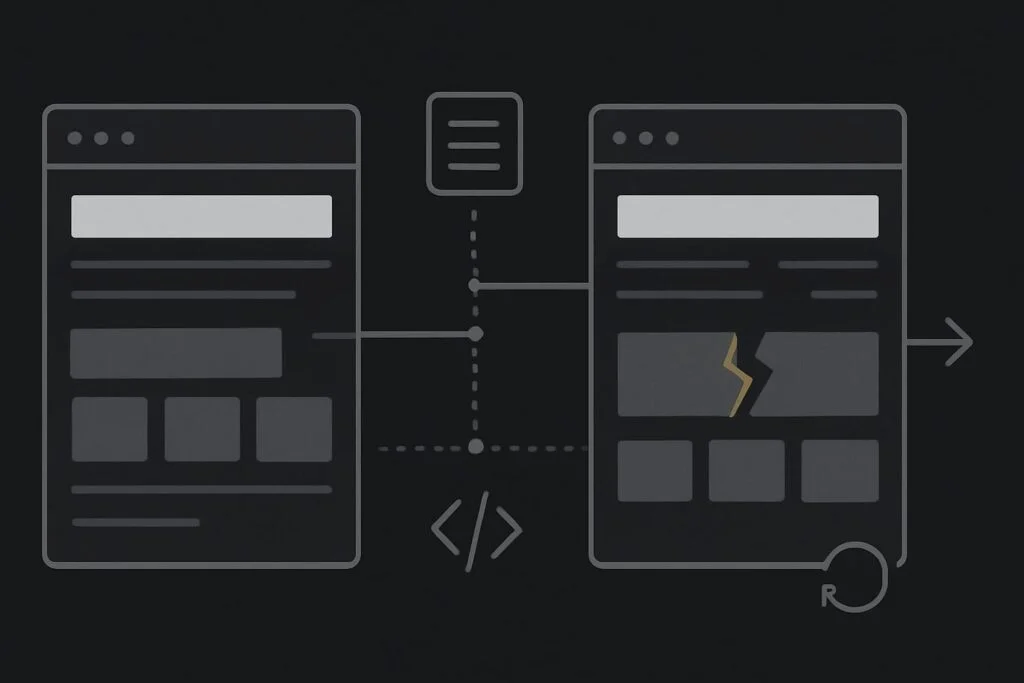
But if another comparable page still works using the same WordPress installation, theme, global header and plugin stack, the most useful evidence is usually the difference between those two pages. The rest of the site has already ruled out quite a lot.
One broken URL does not automatically mean WordPress is unstable
A single-page fault often sits in something local: a different template assignment, damaged page-builder data, an old shortcode, a custom field with missing content, a page-specific script, a cache variation or a redirect rule. It can also be a recent edit that changed one widget, one CSS class or one embedded form.
That does not mean global components are innocent forever. It means changing them first is a poor use of evidence and adds risk to pages that are currently doing their job.
Use a working equivalent as the control page
For WordPress page repair, find the closest working page rather than comparing the broken service page with the homepage. Ideally, it should use the same template, page builder, form style, header, footer and similar content blocks.
For example, a Dubai consultancy may find that its leadership training page renders with collapsed sections while its management coaching page is normal. Both share the same header, theme and plugins. The useful question is not whether every plugin should be disabled. It is what the training page has that the coaching page does not.
A common culprit is a page-level embed or shortcode. One old booking widget, map embed or form block can load a JavaScript error that affects the layout below it. Another regular offender is page-builder data copied from an older design, particularly where a widget has been deleted but related styling or dynamic content settings remain.
Single-page fault triage worksheet
Open the broken URL and its nearest working equivalent in separate tabs. Use the same browser, logged-out state and screen width where possible. Then compare the following without editing either page yet.
| Area to compare | What to look for | Why it matters |
|---|---|---|
| Page template | Assigned template, parent page, body classes and template conditions | A page can bypass the expected layout or load different template code. |
| Builder structure | Sections, containers, widgets, responsive settings and dynamic fields | One malformed widget or responsive value can affect only that URL. |
| Custom fields | Missing values, changed field names and unexpected content types | Templates can fail when a required field is blank or contains unsuitable content. |
| Shortcodes and embeds | Forms, booking tools, maps, video, tables and third-party scripts | Page-specific integrations often introduce their own scripts and errors. |
| Recent revisions | Content edits, moved blocks, pasted code and changed links | A revision can show when the visual fault first appeared. |
| Cache behaviour | Logged-in preview, private browser view, CDN cache and generated CSS | You may be comparing a new editor version with an old public version. |
| Redirects | SEO plugin rules, hosting redirects and canonical settings | The URL may be loading an unexpected destination or query variation. |
Check the page source of the fault before touching the stack
Template assignment and page conditions
Confirm the affected page is using the template you think it is. A page-builder display condition, theme template override or custom page template can make one URL behave differently even when the rest of the site appears consistent.
It is worth checking whether the page has a parent, unusual slug or special category. Those details sometimes trigger conditions that nobody remembers setting up.
Page-level scripts and browser errors
If the page breaks on the public site, inspect the browser console and network requests. You are looking for a failed JavaScript file, blocked third-party resource, mixed-content request or a script error that occurs on the damaged URL but not the working one.
This is particularly useful when a layout works in WordPress preview but fails for visitors. A cached generated stylesheet, deferred script setting or optimisation rule may be involved rather than the content itself.
Revisions, redirects and cache layers
Check recent revisions before rebuilding anything. If a page was fine last Tuesday and someone added a pricing table, tracking snippet or external booking form on Wednesday, that narrows the investigation considerably.
Then test the public URL in a private browser window and compare it with the editor preview. If the editor is correct but visitors see an older or broken version, identify whether the page cache, CDN or generated builder assets are serving something stale. Repeatedly editing the content will not fix a cache layer and can leave you with two separate problems.
When a plugin check is justified
Plugins should be checked when the comparison points towards a shared dependency, a page-specific integration or an error log entry. A form plugin may only be active through a shortcode on one page. An optimisation plugin may only alter assets loaded by one builder widget. That is a focused test, not a site-wide sweep conducted because the page looks odd.
If you need to test a plugin, preserve a backup and use staging where it accurately reflects the live page. Disabling a global component on a live lead-generation site can break forms, tracking or mobile navigation that had nothing to do with the original fault.
What to record before asking for help
- The broken URL and the closest working URL using the same template.
- What visitors see, including device, browser and screen width.
- Whether the fault appears while logged out, in private browsing and in the editor preview.
- The date of the last known good version and any relevant revision or recent edit.
- Console errors, failed requests or screenshots showing the exact layout failure.
- Whether the page includes a unique shortcode, form, embed, redirect or custom field.
That is enough to make an initial diagnosis far less theatrical. If the page needs hands-on inspection, WordPress website repair in Dubai is the sensible next route for isolating the page fault without treating the whole installation as disposable.
Why would only one WordPress page break?
Only one WordPress page can break because pages may have different templates, builder layouts, custom fields, shortcodes, embedded scripts, redirects and cached assets. Even pages that share a theme and header can load different content and code. Comparing the broken URL with a working equivalent helps identify the local difference before global plugins, hosting or theme files are changed.
Should plugins be disabled if only one URL is affected?
Not as the first move. Start by checking whether the affected page uses a plugin feature that the working comparison page does not, such as a form shortcode, booking embed or dynamic widget. A controlled plugin test may be appropriate once there is a reason, preferably on a suitable staging copy with a recovery point available.
Compare the broken page with a working equivalent before changing the whole WordPress stack. If you want a second pair of eyes on the comparison, message Standish Services on WhatsApp about the WordPress page fault.