
WooCommerce checkout spinner: inspect the request
A shopper enters their address, pauses for a second, then the WooCommerce checkout dims and keeps spinning. No shipping refresh, no payment step, no order. For a Dubai, UAE, UK or Liverpool business taking orders online, that is an immediate sales problem rather than a cosmetic annoyance.
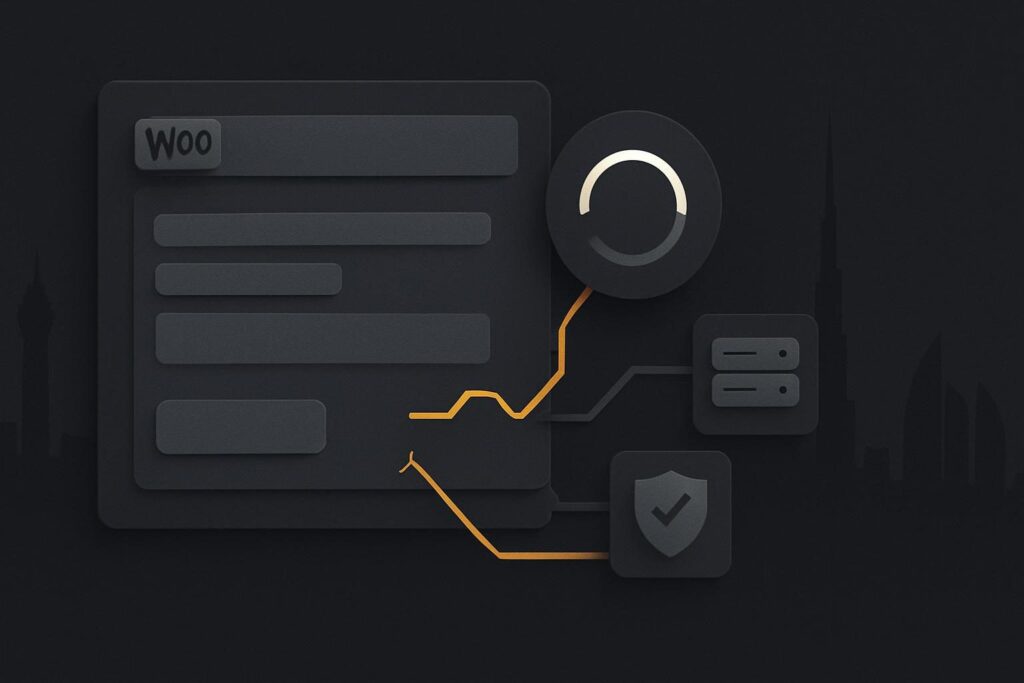
The temptation is to blame the payment gateway. It is often innocent. An address change can trigger work well before a customer attempts payment, including shipping, tax, totals and order review updates. The waiting browser request is a better starting point than the animation.
First, establish which checkout is running
WooCommerce has more than one checkout implementation. A classic checkout and Checkout Blocks do not necessarily send the same request or fail in the same place. Treating them as interchangeable sends people down the wrong path fairly quickly.
WooCommerce’s own endless checkout spinner guidance distinguishes between classic and block checkout. It also notes that the browser may be waiting for a request, rejecting the response it receives, or failing to finish JavaScript after the response arrives.
Check how the checkout page has been built before changing settings. A shortcode-based page is commonly a classic checkout. A page built with the Checkout block is block checkout. Theme customisations and page builders can make this less obvious, so inspect the editor and the live page rather than relying on somebody’s memory of a rebuild six months ago.
What an endless WooCommerce checkout spinner usually means
A WooCommerce checkout endless loading spinner means the browser has not completed the update needed to move checkout forward. On a classic checkout, that may involve an order-review update request. On block checkout, the relevant Store API request may differ. The useful evidence is the request URL, status, response body and browser console error, not the spinner itself.
Use a safe test basket on a staging copy where possible. Do not place real charges, and do not start deactivating plugins on the live store while customers are trying to buy. If staging can send customer emails or touch live services, contain that first. Our guide to safe WooCommerce checkout order testing covers the outbound bits that are easy to overlook, such as an old SMTP connection still pointing at real customer inboxes.
Capture one failed checkout update properly
Open the browser developer tools before reproducing the problem. In the Network panel, clear existing entries, enter or change the address, and watch for the request that remains pending or returns an error. Then check the Console panel for JavaScript errors from the same attempt.
- Record whether the page uses classic or block checkout.
- Use a harmless test product and a controlled test address.
- Repeat the exact shopper action that starts the spinner.
- Find the failed, pending or suspicious request in Network.
- Note its status code, response headers and response body.
- Record related Console errors, including the script file where available.
Redact customer details, session values, nonces, cookies, authorisation headers and payment data before sharing anything. A screenshot of a spinner tells a developer very little. A redacted response body often tells them where to look next.
| What you find | What it can indicate | Useful next check |
|---|---|---|
| Request remains pending | Slow server work, an upstream service delay or a connection that does not finish | Check server logs, PHP workers and any external delivery or tax call involved |
| 401, 403 or challenge page | Security layer, CDN or firewall interference | Compare the response body and security event records |
| 500 response | PHP error, extension fault or server-side exception | Match the request time to the WordPress and server error logs |
| 200 status with HTML returned | The request may have reached a login page, firewall challenge or error document instead of checkout data | Read the body before treating 200 as success |
| Console JavaScript error | A theme, optimisation tool or extension script may prevent checkout from completing | Identify the file owner and reproduce on staging |
Read the response body, not only the status
One common illustrative scenario is an address change that triggers an order-review request. The browser receives a 200 response, which looks reassuring at first glance, but the body contains an HTML security challenge rather than usable checkout data. WooCommerce cannot sensibly update the order review from that, so the shopper gets a spinner.
This is why a gateway outage is a poor first assumption when the problem starts after postcode, country or shipping changes. The payment gateway may not have been called yet. A web application firewall, CDN rule, server cache, shipping extension or custom checkout script could be involved instead.
Separate the failure into the right repair lane
Server or WordPress error
A 500 response, timeout or error trace calls for log correlation. Match the timestamp, request path and active code path. Do not settle for a vague hosting reply that says the server is fine if the failed request says otherwise.
Security or delivery layer
An HTML challenge, blocked request or odd redirect points towards a CDN, firewall, bot rule or caching layer. Checkout requests need different treatment from ordinary public page views. A cache rule built to make product pages brisk can be very unhelpful when applied to changing cart or checkout data.
Extension, theme or optimisation conflict
A JavaScript error or malformed response may tie the fault to a checkout field plugin, shipping tool, payment extension, theme override or script optimiser. Isolate the responsible layer on staging using a restore point and a measured change sequence. Blanket live plugin deactivation is not diagnosis. It is just moving the queue somewhere else.
If the spinner began directly after a WooCommerce, theme or extension update, use the evidence to narrow the update review rather than assuming every checkout issue has the same cause. There is a separate repair route for a WooCommerce checkout broken after an update, where version changes and rollback options need closer attention.
Retest the whole checkout calculation
Once the failed request completes properly, do more than confirm that the spinner disappears. Repeat the agreed address matrix and inspect shipping methods, taxes, discounts, totals, payment options and the final order state. A checkout can progress while calculating something incorrectly, which merely creates a different problem for the finance or fulfilment team.
- Test a domestic and international address where the store serves both.
- Test the shipping method affected by the original failure.
- Check logged-in and guest behaviour if both are offered.
- Confirm mobile behaviour, especially where address autocomplete or custom fields are involved.
- Record the version changes, rule changes and retest result for the handover.
Where the request evidence points beyond checkout alone, a broader website repair review for WooCommerce sites can bring hosting, caching, security and WordPress code into the same investigation. That is often more useful than having three suppliers each declare their bit innocent.
Share the checkout type and redacted failed request for a focused checkout repair. That gives the repair a sensible starting point without guessing at the gateway, theme or latest plugin update.