
Why n8n Merge creates duplicate rows
One company ID goes into an n8n Merge node. On the other input, there are two contact rows with that same company ID. How many items should come out?
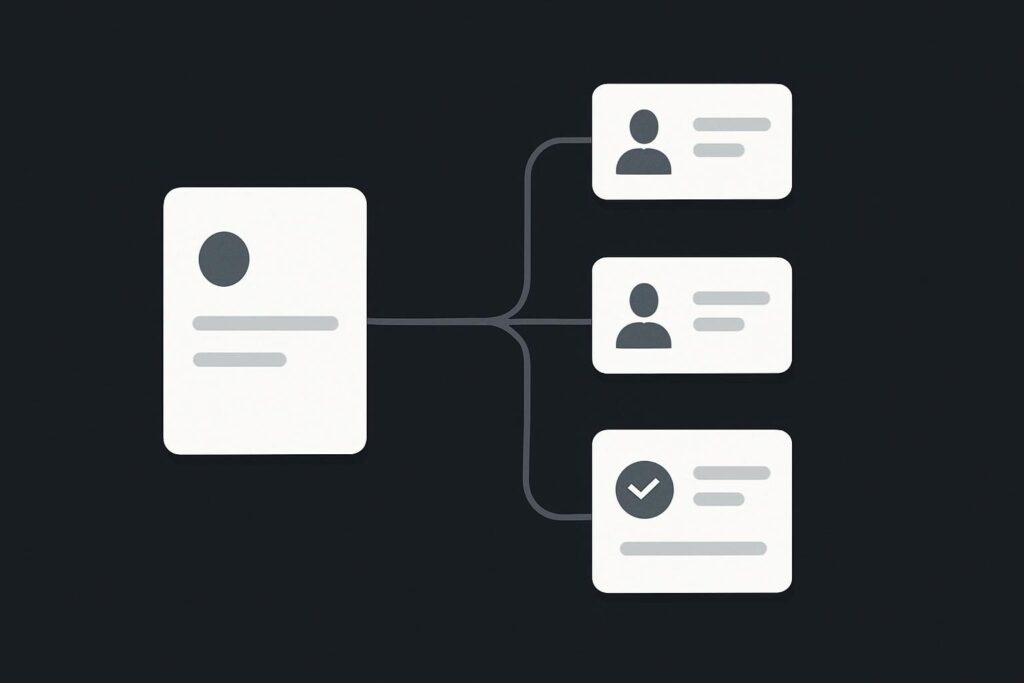
If your answer is two, the Merge node may be doing exactly what you asked. If your answer is one, the workflow needs a business rule before it needs another tweak.
This catches plenty of teams running CRM and onboarding automations in Dubai, the UAE and the UK. They see two downstream tasks and assume the workflow ran twice. Sometimes it did. But a single execution can produce several valid output items when one record matches several records on the other branch.
Find the write before inspecting the Merge
Start at the node that creates or updates something real: a CRM task, onboarding record, internal notification or project item. That is the commercial risk, rather than the output counter alone.
In an illustrative onboarding workflow, a company record enters one Merge input and two contact records enter the other. The next CRM node creates a company onboarding task for every output item. The result is two tasks against one company, both created in the same execution.
Before changing the Merge node, disable that write or point it at a harmless test destination. A green tick on a CRM node is reassuring right up until somebody has to untangle six duplicate tasks on a Monday morning.
For wider help designing workflows around real business processes rather than just connecting apps, see business automation delivery support for operational workflows.
The output count is decided by the match shape
n8n’s Merge node can output one item for each match when Include All Matches is selected. Its documented Include First Match Only option instead drops additional matches. That behaviour is set out in the n8n Merge node documentation.
A Merge node outputs duplicate-looking rows when a key is repeated on either input and the selected match mode permits every match. One company record matched to two contact records produces two output items in the same execution. The fix is to define whether the business process needs one company-level result, several contact-level results, or an aggregated result before any downstream write occurs.
The word duplicate can be misleading here. Two rows might be technically valid matches but commercially wrong outputs. n8n cannot decide whether your onboarding task belongs to a company, a contact, or a company with a bundled contact list. That is your rule to define.
Inspect both inputs by the actual join key
Open the execution data immediately before the Merge node. Do not just count the coloured lines on the canvas. Inspect the items reaching each input and write down the key being used to match them.
For a company ID join, the smallest useful check looks like this:
- Input 1 has company ID C-104 once.
- Input 2 has company ID C-104 twice, once for each contact.
- Include All Matches is selected.
- The Merge node emits two matched items for C-104.
Now do the same for every record in the sample, including blanks, old IDs and IDs with inconsistent formatting. A stray trailing space in an imported value can create a different problem, but it should not be confused with a clean one-to-many match.
Check the identity, not merely the label
A contact called Sarah Jones is not a safe join key. Neither is a company name copied from a form if the CRM permits near-identical records. Use the stable identifier that the receiving system actually recognises, then check whether it is genuinely unique at the level you are joining.
This is dull work, but it is the useful sort. A CRM export may contain an archived contact, a duplicate created during a manual import, or a contact that has moved company without its old relationship being cleared. The Merge node simply receives the records it is given.
Choose the output shape before choosing the setting
Define the intended output count per business record before choosing the Merge node’s match setting. There are three common valid shapes.
One company should create one task
If the downstream task is company-level, make sure there is one company record and aggregate the related contacts before the write. For example, collect contact names or IDs into a list attached to one company item, then create one onboarding task containing that context.
Each contact should receive its own action
If each contact needs a separate welcome task, two output items are correct. Keep Include All Matches, but make the downstream action explicitly contact-level. A task title, owner and CRM relationship should make that obvious to staff rather than leaving two apparently identical records.
Only one contact is permitted by the process
Use Include First Match Only only where the business rule says there must be one selected contact and the selection order is meaningful. It can be appropriate for a designated primary contact, provided the upstream data deliberately identifies that record. It is not a tidy way to hide two legitimate contacts sharing a company ID.
Correct the data or aggregate it upstream
Once you know the expected shape, the repair route is usually plain enough:
- Remove or correct records that should not share the key.
- Use a more specific key where the current key is too broad.
- Aggregate several matching records into one item when the downstream action is company-level.
- Keep multiple items when each match needs its own traceable action.
- Run a controlled test with writes disabled, then inspect the exact item count after Merge.
Do not switch to First Match Only merely because it makes the count look nicer. That can quietly leave a valid contact out of an onboarding process, which is a rather expensive way to make a workflow graph look tidy.
Keep merge shape separate from item linking
After the Merge output count is correct, check the expressions used by later nodes. An expression can still retrieve the wrong earlier item if its item links and branch context are misunderstood. That is a separate fault from a legitimate one-to-many merge. Read how n8n item linking can return the wrong customer data when the row count is right but the customer fields are not.
Likewise, if your execution history shows genuinely separate runs rather than extra matches within one run, treat that as a different investigation. duplicate invoice execution and safe retry handling covers the controls worth considering when a write may be repeated across executions.
Prove the count before restoring the CRM write
Use one controlled company with known contacts. Record the expected count before each stage: input one, input two, Merge output and final CRM actions. If one company should create one task, every node after aggregation should show one item. If two contact tasks are intended, the CRM should show two distinguishable tasks with the correct contact references.
That gives you something better than a hopeful rerun. It gives you a workflow rule somebody else can inspect when the automation is changed six months later.
If the Merge output is already multiplying records and the next node writes to your CRM, book a review of the merge before duplicate tasks reach your CRM.