
Why a paid WooCommerce order stays Processing
A paid WooCommerce order sitting in Processing can look like a fault when staff are waiting for it to say Completed. Often, particularly for a Dubai shop selling physical goods, it is simply the normal point between taking payment and sending the item out. The status is telling you there is still a job to do, not necessarily that money has gone missing.
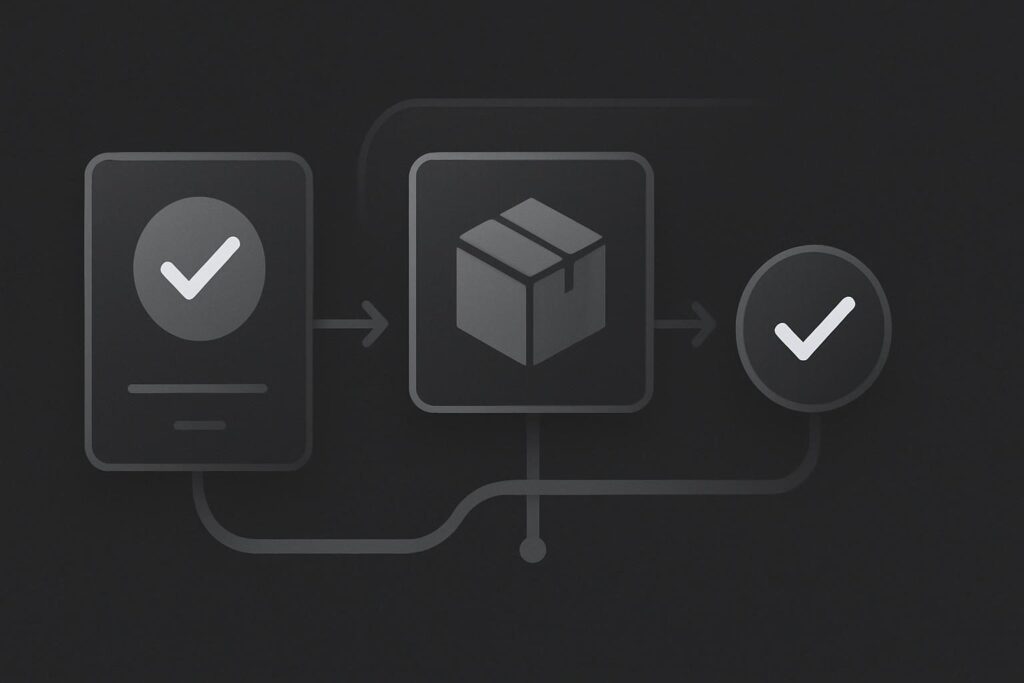
In plain terms, Processing means WooCommerce has received payment and the order still requires fulfilment. Completed means the fulfilment work is done. Payment and fulfilment are different milestones, and treating them as the same thing creates needless chasing of payment providers or, worse, orders marked finished before anyone has packed them.
Processing is a work queue, not a failed payment notice
WooCommerce documents Processing as payment received with fulfilment pending, while Completed means fulfilled. It also documents an automatic-completion exception for orders containing only products that are both virtual and downloadable. That distinction is worth reading in the WooCommerce order status documentation before adding any automation.
A paid WooCommerce order can remain Processing normally when the payment gateway has confirmed payment but the business still needs to dispatch goods, deliver a service manually, check stock, arrange collection or complete another fulfilment step. It should move to Completed when that work is genuinely finished, unless the store has a documented reason to automate completion for a particular product type.
Start with the evidence attached to the order
Do not use the green-looking payment screen as your only proof. Open the WooCommerce order and compare the payment method, transaction reference, payment gateway record and order notes. The timestamps matter too. A gateway callback may arrive a few minutes after checkout, while a staff member can easily be looking at an earlier note and drawing the wrong conclusion.
For a physical product, a sensible evidence trail is straightforward:
- The order has a successful payment record or gateway transaction ID.
- The billing and shipping details are present and make sense.
- The item requires packing, collection or dispatch.
- The order remains Processing until that task is recorded as complete.
Take an illustrative shop selling a boxed coffee machine in Dubai. The customer pays at 10:12, the gateway confirms the transaction, and WooCommerce places the order in Processing. At 14:00, warehouse staff print the packing slip and hand it to a courier. The order can then be marked Completed if that is the shop’s chosen fulfilment point. Nothing in that sequence suggests a payment fault.
Product type decides whether Processing is expected
Look at what was actually purchased before touching the status. A physical item usually needs a human action somewhere in the chain. A consulting session may need appointment confirmation. A virtual service might be completed manually once the work starts or finishes. Products that are both virtual and downloadable sit in a different category because WooCommerce has a documented automatic-completion route for them.
Mixed baskets deserve extra care. An order containing a downloadable file and a physical product may give the customer access to the digital element under the store’s settings, while the order itself stays Processing because the parcel still needs dispatching. Do not confuse that with a missing download problem. If the customer has paid but cannot access a file, investigate entitlement and access separately rather than forcing the whole order to Completed.
Keep Pending Payment separate from Processing
Pending Payment is an adjacent issue, but it is not the same one. It normally means payment has not yet been confirmed, so the first job is to establish whether the customer completed payment and whether the gateway returned a result. If that is the state you are dealing with, use this guide to check a WooCommerce Pending Payment order without guessing.
Processing means the payment side has moved on. Refunds are another separate route again. A refund may alter the financial position of an order, but it does not answer whether goods were dispatched or a service was delivered. Keep the facts separate or the order history becomes a bit of a mess.
Do not install blanket auto-completion behaviour
Automatic completion can be appropriate for a tightly defined digital product workflow. It is not a harmless tidy-up for every paid order. A broad snippet or plugin setting can hide the operational queue your staff need to see, especially in stores selling stock, deliveries, bookings or mixed products.
Before changing automation, write down the intended lifecycle for each product group. For example, a physical product may be Payment received, Processing, packed, dispatched, Completed. A virtual downloadable product may be Payment received, access granted, Completed. The exact middle steps can vary, but the business should know what Completed means in its own process.
Test the route as a buyer and as staff
Use a controlled test order where possible, then inspect the checkout confirmation, gateway result, WooCommerce order notes, customer email and staff workflow. Do not test during a busy trading window with a random live order and hope for the best. A plugin updated during business hours, an altered payment gateway setting or a shipping extension can all complicate status behaviour, so record what changed before assuming WooCommerce has invented a new hobby.
For ongoing checks, include a paid-order test in your WooCommerce checkout maintenance routine. If statuses are inconsistent across gateways, product types or fulfilment tools, it may also be time for a focused website repair review for your WooCommerce store rather than another quick status override.
When remaining in Processing is normal for a paid order
Remaining in Processing is normal when payment has been received and the order still needs a real fulfilment action. That could be dispatching a physical item, arranging delivery, confirming collection, preparing a made-to-order product or completing a manual service step. It becomes worth investigating when the order should have completed under the documented product setup but does not, or when the payment evidence itself is unclear.
Ask for an order-lifecycle review before adding automatic status changes to your store.