
Why WooCommerce exports repeat the same order ID
A fulfilment team opens a CSV and sees the same order ID twice. Under pressure, somebody suggests removing the duplicate before stock, revenue or dispatch figures go sideways.
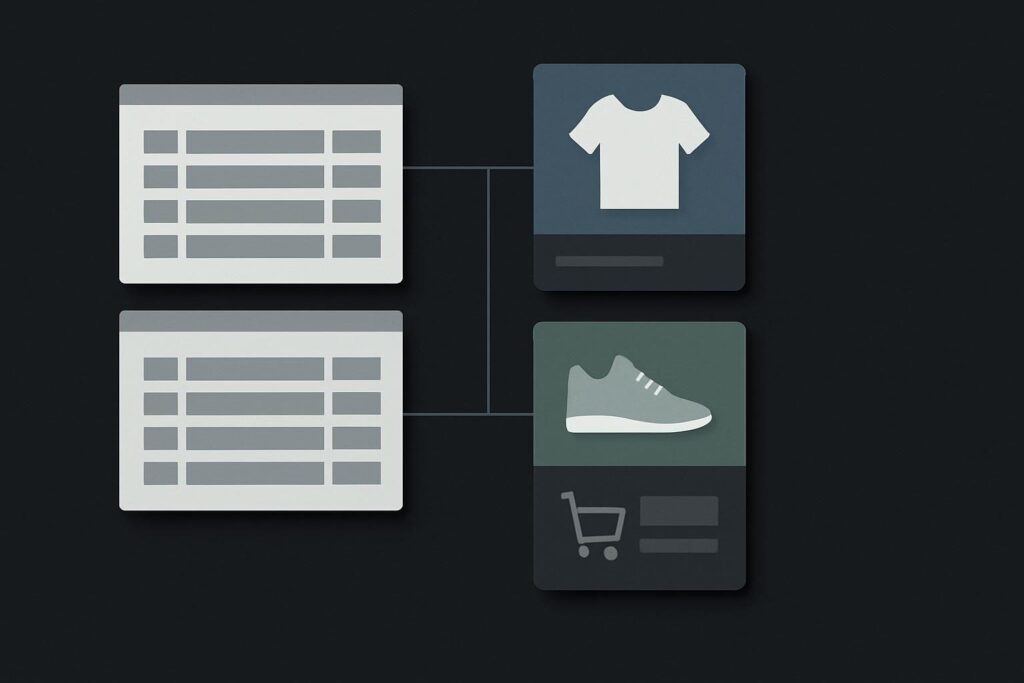
Start with the rows themselves. This illustrative export contains one order with two different products.
Illustrative CSV excerpt
| Order ID | SKU | Item quantity | Order total |
|---|---|---|---|
| 10482 | TEA-BLK-250 | 1 | 85.00 |
| 10482 | MUG-WHT-01 | 2 | 85.00 |
There may be one paid order, three units to fulfil, and two export rows. Those are three different counts. Mixing them up is how a fairly ordinary spreadsheet turns into a small operational mess.
Read the order and CSV as two views of the same sale
In WooCommerce, order 10482 would show one customer order containing two line items: one tea product and two mugs. The CSV can represent that same order in more than one way depending on the exporter and its settings.
WooCommerce’s Customer / Order / Coupon Export documentation describes both a default CSV output and a one-row-per-item format. Its custom CSV settings can also determine the row basis. So a repeated ID does not, by itself, prove that a shopper ordered or paid twice.
A WooCommerce order export with duplicate rows under the same order ID commonly means the export uses one row per line item. Confirm this by comparing the SKU, product name, quantity and item-level identifiers against the original order before treating any row as a duplicate record.
One row per order versus one row per item
| Export basis | What one row represents | What can be counted safely | Common reconciliation mistake |
|---|---|---|---|
| One row per order | The whole customer order | Orders and order-level totals | Assuming product detail is available for fulfilment |
| One row per item | One product line inside an order | Units, SKUs and fulfilment lines | Counting rows as orders or summing repeated order totals |
The awkward column is usually the order total. In a line-item export, that value can appear on every related row because it belongs to the parent order. Add it row by row and you can double-count revenue. Conversely, deduplicate by order ID alone and you might discard the mug line entirely.
Decide what a row means before removing duplicates or summing totals. It is less exciting than hitting Remove Duplicates in Excel, but it keeps the stock team from packing half an order.
Use one controlled order as the reconciliation control
Do not begin with a busy month-end export. Place or locate a small test order with two clearly different SKUs, ideally with different quantities. Record the order ID, the products, line quantities, shipping, discount and final total before exporting.
Our guide to placing a controlled WooCommerce test order during maintenance is useful for this because the original order becomes the control record. Export it using the format the receiving team actually relies on, then compare every row against the WooCommerce order screen.
- Find the order in WooCommerce and note its line items.
- Filter the CSV to that one order ID.
- Check whether each row has a different SKU, variation, item ID or quantity.
- Identify which fields belong to the order and which belong to the item.
- Ask the receiving system whether it counts rows, groups by order ID, or expects item-level data.
That last point matters more than people expect. A warehouse feed often needs line-item rows. A finance report may need a single order row. Neither is wrong, but feeding one format into a system built for the other creates bad totals or missing fulfilment lines.
When repeated IDs need a different investigation
If two rows share an order ID but contain the same item details, do not leap straight to deletion. Compare the original order, export timestamp, quantity, refund status and any item identifier first. An export can legitimately contain repeated products where a shopper bought the same SKU twice as separate lines, particularly where variations, bundles or line-level discounts are involved.
Keep this separate from a genuine duplicate-payment concern. If WooCommerce contains two different order IDs, or payment and webhook activity suggests more than one completed transaction, use a process to trace suspected duplicate WooCommerce orders after payment rather than trying to diagnose it from a CSV alone.
Likewise, if the export format is only one part of a wider failure involving fulfilment, integrations or damaged order data, it may need a more focused WooCommerce website repair review. The CSV is evidence, not the whole case.
Choose the correction at the right level
There are usually two sensible routes. Change the export to one row per order if the receiving system only needs customer orders and order-level totals. Keep a one-row-per-item export if stock, picking or product-level reporting depends on it, then adjust the downstream mapping to group order fields and preserve every item row.
Do not alter live export settings halfway through a reconciliation without recording the old format, the new format and the date of change. A scheduled file sent overnight to an old inbox, SFTP folder or integration can carry a different shape than the one somebody downloaded manually. That boring detail catches teams out more often than it should.
FAQ: How can I tell a repeated line item from a second item?
What if the same SKU appears more than once under one order ID?
Check more than the SKU. Compare the line-item ID, variation, quantity, item subtotal, discount and product metadata against the WooCommerce order. Two matching SKUs may be legitimate separate lines, or they may represent a quantity split by an extension. Treat them as duplicates only when the underlying order and the receiving system’s expected structure support that conclusion.
If your team is trying to reconcile an export without losing fulfilment lines, send us your export headers and a redacted sample to trace the repeated order IDs. Include one original WooCommerce order view if possible, with customer details removed.