
Why WooCommerce tax changes after an address
A shopper adds one product to the basket. Before entering an address, they see an estimated total. They then enter a shipping address at checkout and the total changes. Someone in the office spots it, assumes the product price has been corrupted, and starts looking for a quick fix.
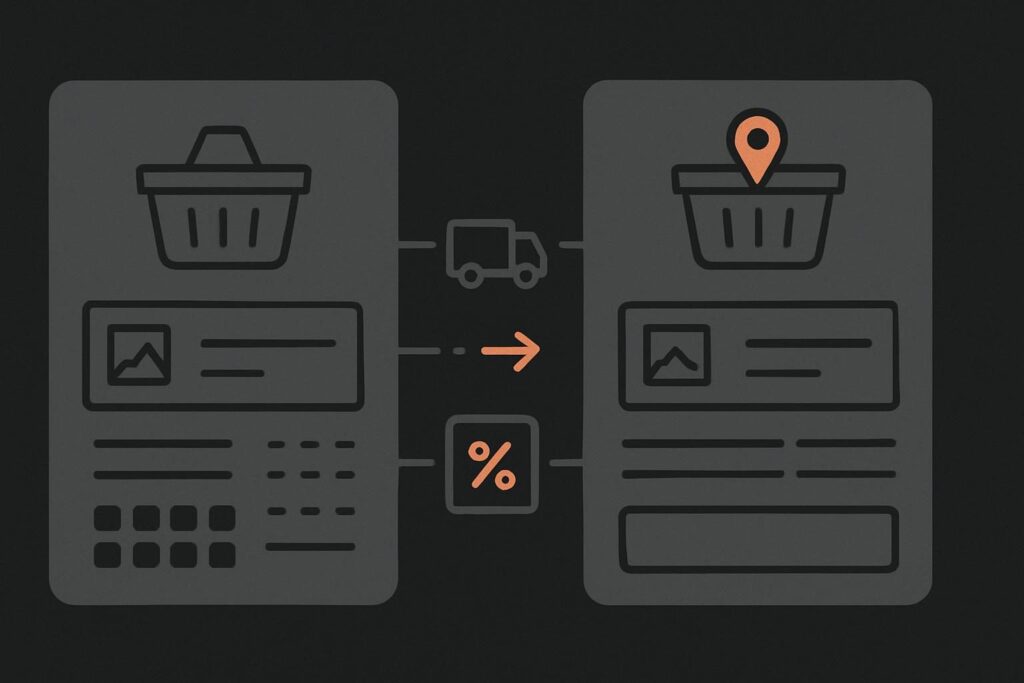
Hold fire. For a WooCommerce store serving customers in Dubai, the UAE, the UK or elsewhere, a changed tax total can simply mean the calculation has moved from a default customer location to the location supplied by the shopper. The useful question is not whether the number moved. It is which tax basis produced each number.
Run the same basket twice before touching settings
Use one controlled test basket with one ordinary product, one quantity and no coupon. First, run it as a guest with no address entered. Record the displayed product price, tax line, shipping amount and grand total.
Then repeat the same journey using a defined test shipping address. Record the same values again. Use redacted test details, not a customer’s live address, and keep the basket otherwise identical.
This sounds painfully basic, but it stops a common muddle: comparing a catalogue price from one state of checkout with a total calculated from another. If the wider issue is a price difference between the product page, basket and checkout, read our guide on comparing the basis of a WooCommerce price difference. That is a separate diagnostic boundary from an address triggering a new tax calculation.
What WooCommerce is allowed to use for tax calculation
WooCommerce can calculate tax from the customer’s shipping address, billing address or the shop base address. It can also use a default customer location before the shopper supplies their details. Once an address is entered, WooCommerce may find a different matching tax rate and recalculate the order accordingly.
WooCommerce documents these location choices and the related customer-location behaviour in its tax configuration guidance. The documentation explains system settings, not which tax treatment your business is legally required to apply. Confirm the intended treatment with the accountant or adviser responsible for that decision before changing store-wide configuration.
A different initial estimate and addressed checkout can therefore legitimately differ when the store is configured to use customer location and the entered address matches a different rate. It is only a problem if that behaviour conflicts with the tax treatment you have approved, or the store is selecting the wrong rate.
Establish the intended treatment first
Before inspecting a single dropdown, write down what the business expects for this product and this destination. Keep it plain: which destination is being tested, whether tax should apply under the approved treatment, and whether shipping is expected to affect the taxable total.
Without that reference point, people tend to chase the visible number. That often leads to disabling tax, changing a product price, or editing a rate that was doing exactly what the configuration told it to do. A rushed global change can create far more customer questions than the original checkout discrepancy.
Trace the calculation in the order WooCommerce uses it
The following checks work best in sequence. Do not alter three settings at once and then hope the total looks friendlier.
| Check | What to compare | Why it matters |
|---|---|---|
| Default customer location | The location used before an address is entered | This explains the first estimate seen by the shopper. |
| Tax calculation address | Shipping address, billing address or shop base address | This determines which customer details WooCommerce uses after entry. |
| Matching tax rate | Country, region, postcode and other rate conditions | A rate may apply only once the address has enough detail. |
| Product tax class | The tax class assigned to the tested product | The correct rate cannot apply if the product is in the wrong class. |
| Display settings | Whether prices are shown including or excluding tax | The same calculation can look different depending on where it is displayed. |
Match the product to the rate, rather than guessing
Take the product from the controlled basket and inspect its tax class. Then inspect the rate assigned to that class. A product in the standard class will not behave like one assigned to a reduced or zero-rated class, and a blank or unexpected class can make diagnosis needlessly murky.
Next, check the conditions on the applicable rate against the test address. Country is rarely the whole story. Depending on configuration, region and postcode rules can matter too. This is where an address entered halfway through checkout can change the result without any product price having changed.
Also check whether shipping has its own tax handling in the approved setup. Do not make a change merely because a shipping-related line looks unfamiliar. Compare the complete basket calculation against the intended treatment first.
Display choices can make correct maths look suspicious
A product page showing prices including tax and a checkout line that presents tax separately can give staff the impression that WooCommerce has added something twice. Often it has not. The display basis has changed, while the underlying calculation remains consistent.
Check the settings for catalogue prices, basket and checkout display, plus whether the entered price is treated as inclusive or exclusive of tax. Record what the shopper sees at each stage. A screenshot of only the final total is rarely enough to settle this properly.
Keep the test controlled and repeatable
Run the same guest journey in a private browser window or a clean session. Existing cookies, saved customer data and an already-populated checkout can carry location details forward and spoil the comparison. It is the checkout equivalent of checking a contact form success message and assuming the email landed in the inbox. The visible result is useful, but it is not the full evidence.
For a disciplined store check, use a small WooCommerce test order checklist alongside the two baskets. Record the product, tax class, address basis, entered address conditions and every displayed amount. That gives whoever owns the tax configuration something concrete to review.
When this becomes a website repair issue
If the controlled result does not match the approved treatment, the repair scope may sit in tax settings, product data, a shipping method, a checkout customisation or a plugin that alters totals. The answer is still not to change prices first. Explain which location and tax basis produced the total, then correct the smallest confirmed cause.
Where the checkout has been customised, regularly updated, or has several extensions adjusting prices and shipping, it may need a more careful website repair review for a WooCommerce checkout issue. Preserve the test evidence before anyone starts toggling settings during business hours.
Leave the customer-facing price alone until the basis is clear
A tax change after address entry does not automatically mean the product price is wrong. It may be expected behaviour, an incorrect match, or a display choice that has made a consistent calculation look odd. The only sensible starting point is the same basket twice, with both calculation bases written down.
Ask for a checkout calculation review using one product and two redacted test baskets. It is a calmer route than changing store-wide settings because one total looked alarming on a Tuesday afternoon.