
WordPress staging to live checklist: don’t overwrite orders
The launch button is hovering over a staging database. It does not contain this morning’s orders.
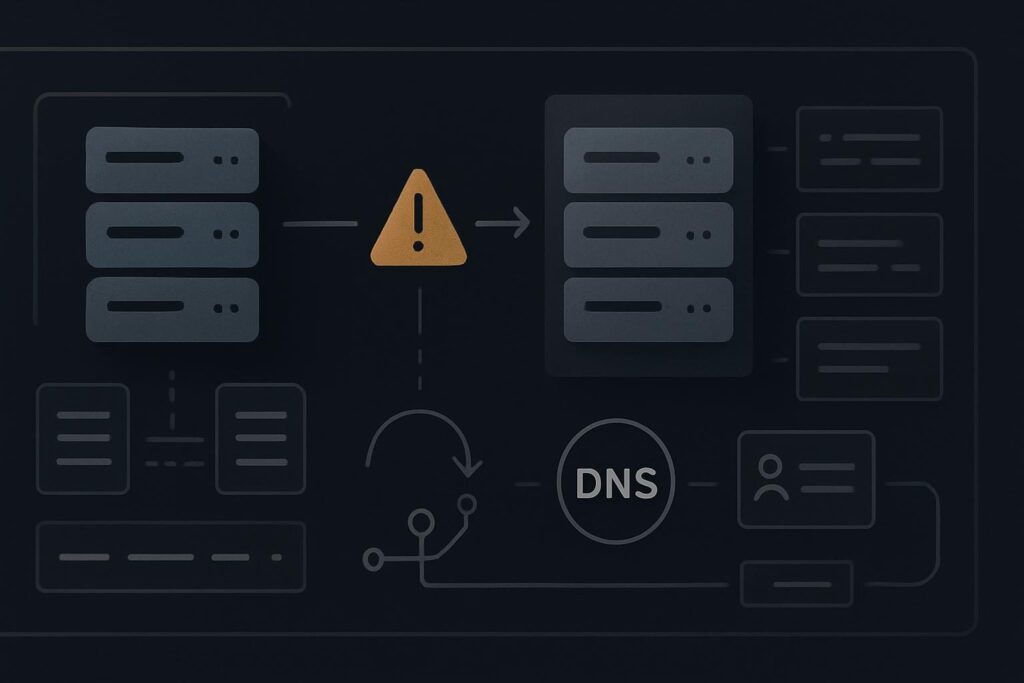
That is the point at which a tidy design approval can turn into an awkward operational decision. The pages may be approved, the client may be happy with the new header, and someone may reasonably ask whether staging can now simply replace production. For a brochure site, perhaps. For a live WooCommerce store, membership site, booking system or busy lead-generation website, that assumption needs checking before anyone pushes anything.
A WordPress staging to live checklist should establish exactly what will move, in which direction, and what live data must survive the launch. Check the database, uploaded files, form delivery, orders, SEO controls, redirects, DNS dependencies, backups and a tested rollback route. The right launch method depends on the type of website and what customers have done since the staging copy was created.
Design approval is not permission to replace production
A staging site is a working copy taken at a moment in time. It is useful for rebuilding templates, testing plugin changes and approving content. It is not automatically a safe replacement for the live site.
Take a WooCommerce shop where staging was created two weeks ago. Since then, production has received paid orders, customer accounts, stock changes, order notes and possibly refund records. Pushing the whole staging database live may put the new design in place while removing the operational history created after the copy was made.
The same problem appears in less obvious forms. A consultancy site may have new contact submissions in the live database. A clinic could have booking records. A membership site could have new users and password changes. Even a simple service site may rely on a form plugin that stores entries locally.
This is why broader WordPress website repair support in Dubai often starts with the route a real visitor takes and the systems behind it, rather than a quick fix based on what looks safe in the dashboard.
First check: what is actually moving?
Before launch, name the components rather than calling the job a push. WordPress is made up of files, a database, server settings and connected services. They do not all need to move together.
- Files: theme files, plugins, uploads, custom code and configuration files.
- Database: pages, settings, users, orders, form entries, plugin data and site options.
- Server configuration: PHP version, caching, SSL, cron jobs, redirects and environment variables.
- External connections: payment gateways, SMTP providers, booking tools, analytics, search integrations and DNS records.
A sensible launch can mean deploying changed theme files and selected database settings while preserving the live order and user data. The exact method depends on how the site was built. If custom fields, page builders, WooCommerce settings and plugin configuration are all mixed through the database, the job needs more care than copying a few template files.
Check the database direction before anything else
Write down the source and destination in plain English. For example: staging files to production, selected settings to production, production orders remain authoritative. It sounds basic, but it stops someone selecting the wrong database in a hosting panel when the pressure is on.
Check the staging copy date. Then identify every live process that writes to the production database:
- new orders, refunds and stock movements
- customer registrations and password resets
- contact form entries stored in WordPress
- appointment, event or booking records
- comments, support tickets or member activity
If production has changed since staging was created, do not treat the staging database as a clean master copy. It is an older branch. The launch approach should preserve or reconcile the newer live records.
Run the customer route, not just the homepage
The practical test is the journey a customer or prospect actually takes. For a store, that means product, basket, checkout, payment confirmation, order email and order record. A success message on a contact form is not proof that the message arrived. SMTP settings, spam filtering and the destination inbox still need checking.
For a WooCommerce site, use a controlled order after the relevant launch changes. The separate guide to WooCommerce checkout maintenance through a test order covers that route in more detail. Keep this launch check focused on whether the new version has preserved the live commerce setup and whether the order path still works after cutover.
Test the route on a normal customer device too. Staging often bypasses cache, has password protection, or uses a different payment gateway mode. Those differences can hide a problem until the public version is exposed.
SEO, redirects and DNS are launch items, not finishing touches
Staging sites are commonly set to discourage indexing. Useful on staging, disastrous if that setting reaches production. Check WordPress reading settings, SEO plugin controls, meta robots rules and any server-level restrictions after launch.
Then test the important old URLs. A redesigned page may have a new slug, but the old route may still be sitting in search results, an email campaign or a supplier’s link. Use a redirect map and test the destination, not merely the redirect plugin screen. If visitors hit errors after a move, this guide to checking WordPress 404 errors after migration is a useful next diagnostic route.
DNS deserves its own pause. If the website shares a domain with business email, careless record changes can affect mail delivery. Record the current A, CNAME, MX, SPF and DKIM entries before changing anything. Do not assume the web host has copied them correctly just because the website resolves.
Set the rollback point before launch day
A backup is only part of a rollback plan. You need to know what will be restored, where it is stored, who can access it, and what trigger causes the team to use it. A database backup taken immediately before launch is useful, but only if it can be restored without guessing which environment is which.
For a brochure site, rollback may be restoring the prior files and database snapshot. For a shop, reverting everything after fresh orders have started arriving can create a second data problem. In that case, the safer route may be to reverse the changed code or template files while retaining the current live database.
Agree the decision owner, the rollback method and the first checks after cutover. That removes the usual five-minute debate while customers are attempting to pay.
WordPress staging launch checklist
- Record the staging copy date. Know how old its database and uploads are.
- Define the deployment direction. State which files, settings and data move from staging to production.
- Identify live records to preserve. Include orders, users, bookings, form entries, stock and support activity.
- Take a fresh production backup. Confirm access, location and what the backup includes.
- Check environment differences. Review PHP version, cache, payment mode, SMTP, cron and API keys.
- Test the main customer route. Complete a controlled enquiry, booking or order appropriate to the site.
- Review search controls. Remove staging noindex restrictions and confirm canonical settings point to production.
- Test priority redirects. Check old high-value URLs and key internal links.
- Protect DNS and email records. Record current settings before host or domain changes.
- Agree the rollback route. Set the trigger, owner and method before the launch starts.
- Monitor after cutover. Check forms, order emails, logs, error reports and the live customer journey.
What this checklist cannot decide on its own
The checklist can reveal where a launch is risky. It cannot tell you, without reviewing the build, whether database changes can be merged safely or whether a plugin has stored essential data in an unexpected place. Page builders, custom integrations and WooCommerce extensions can make an apparently simple deployment more involved.
If the site handles live orders, bookings, customer accounts or regulated business information, get someone to trace the real user journey and underlying system before suggesting a fix. Ask Standish Services to trace the problem and scope a practical fix.