
WooCommerce variation unavailable despite stock
Picture a fictional Liverpool retailer selling the North Dock overshirt. Navy in medium can be bought. Stone in large can be bought. Navy in large appears in the selector, yet the add-to-basket button stays unavailable.
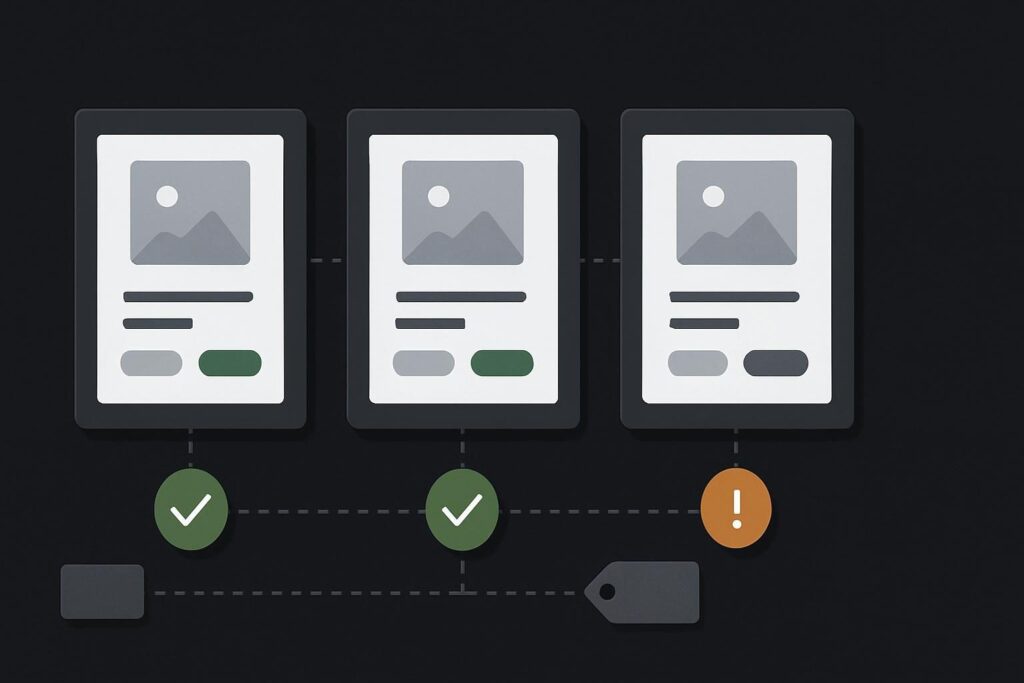
The catalogue says the overshirt is in stock, so the owner assumes WooCommerce has had a wobble. Usually, it has not. The selected variation is a separate purchase record, and it needs to be valid in its own right.
Demonstration: the North Dock overshirt
For this example, the parent product has colour and size attributes. It is published, visible in the catalogue and has stock available. The customer chooses Navy and Large, but WooCommerce cannot find a purchasable variation for that exact pair.
| Selected combination | Variation record | Customer result | What to inspect |
|---|---|---|---|
| Navy, Medium | Exists, priced and enabled | Purchasable | Attributes, price and stock status |
| Stone, Large | Exists, priced and enabled | Purchasable | Attributes, price and stock status |
| Navy, Large | Missing, disabled or incomplete | Unavailable | Exact attribute pair, price, stock owner and enabled state |
The parent product is only the container. It does not guarantee that every combination displayed to a customer has a live, purchasable child variation behind it. Treat the chosen variation as its own purchase record.
Direct answer: A WooCommerce variation can be unavailable while the product is in stock because WooCommerce checks the selected variation’s attributes, enabled status, price and stock rules. The parent product may remain visible if at least one variation is available, but a size-colour combination will not be purchasable if its matching variation is missing, disabled, out of stock, or has no usable price.
WooCommerce documents that variable products can use product-level or variation-level stock, and that variation-specific prices and availability affect what customers can buy. Its variable product documentation is worth checking when the settings screen starts telling two different stories.
Work down the variation record before touching the front end
Start in the product editor, open the Variations tab and locate the exact combination the customer selected. Do not inspect a nearby blue variation and assume it covers navy large. Attribute terms can look similar, especially after a product import or a catalogue tidy-up.
1. Confirm the combination actually exists
Look for a variation with the precise colour and size values. If the dropdown offers Navy and Large but no matching variation record exists, the selector is advertising an impossible choice. This often happens when attributes are added at parent level after variations were created, or when an import has skipped a row.
If the combination is intentionally not sold, remove or correct the selectable attribute options so customers are not sent down a dead end.
2. Match the attributes, not the labels you expect
Open the variation and check its assigned attributes. A variation set to Any colour and Large behaves differently from one assigned specifically to Navy and Large. Likewise, a renamed colour term can leave an old variation attached to a stale value that no longer matches the visible selector.
This is the boring bit that gets missed after someone changes Beige to Sand in the catalogue and assumes the old records will politely follow along. They do not always do that.
3. Check the price is present
A variation with no regular price or sale price is not normally purchasable. The parent may show a price range from its other variations, which makes the product page look healthy until the customer picks the incomplete option.
For the North Dock example, Navy Large may have stock recorded but no price after a bulk upload. That is enough to stop the sale.
4. Establish who owns the stock
WooCommerce can manage stock at the parent product level or on individual variations. Check whether stock management is enabled on the variation, whether a quantity is present, and whether the stock status is actually in stock. Do not turn on backorders as a quick escape hatch unless there is a proper stock policy behind it.
Parent stock and variation stock can appear to conflict because they are different settings. If stock is managed per variation, the selected variation’s quantity and status matter. If stock is managed only at product level, the parent stock rule carries more weight. The setup needs to be deliberate, rather than a mixture left behind by imports and edits.
5. Confirm the variation is enabled
A variation can exist, have a price and still be disabled. Check its enabled box and publication state. Also check that the parent product remains published and that no catalogue rule or extension is changing availability for a user role, location or customer type.
Only then look at swatches, JavaScript and cached data
If the exact record exists, matches the selected attributes, has a price, has valid stock rules and is enabled, then the problem may be front-end behaviour rather than product data.
- Test the product in a private browser window and on a phone.
- Switch from swatches to standard dropdowns temporarily, if the theme or plugin permits it.
- Check browser console errors and the WooCommerce variation script response.
- Clear the relevant site, plugin and CDN cache after a confirmed data correction.
- Test one controlled order through to confirmation, rather than stopping at an active add-to-basket button.
A stale cache can retain old variation JSON after a price or stock correction. Equally, a swatch plugin can display all attribute terms even when WooCommerce itself cannot resolve a valid variation. Those are real faults, but they are second in the queue. Fixing a JavaScript symptom will not create a missing Navy Large record.
For a broader route through product choice, delivery and checkout, see our guide to following a WooCommerce sale from product page to confirmation. Once a variation is corrected, use a controlled purchase as part of your WooCommerce checkout maintenance routine, especially after theme, stock plugin or import changes.
When this is a build issue rather than a one-product fix
One incomplete variation is a repair job. A catalogue where swatches, attribute terms, stock ownership and imports are all pulling in different directions needs a wider review. That may involve the theme’s variation handling, an ERP or stock feed, custom product templates, or a batch import process that is quietly creating incomplete records.
If the store needs a more dependable product-data setup, it may be time to look at WooCommerce development support for Liverpool businesses. Where the fault has spread beyond one product and needs careful diagnosis across plugins, templates and data, website repair support for a WooCommerce fault is the more sensible route than repeatedly editing live products.
Questions about unavailable WooCommerce variations
Can parent stock and variation stock conflict?
They can appear to conflict when both levels have been configured inconsistently. WooCommerce may use the parent product stock setting or an individual variation’s setting depending on how stock management is enabled. Check which record is intended to own inventory, then remove ambiguity rather than leaving parent and variation quantities to contradict each other.
Why is one attribute combination absent from the dropdown?
The combination may not have a matching variation record, the variation may be disabled or out of stock, or the front-end selector may be filtering it based on the available variation data it receives. First confirm the exact variation exists and is purchasable in WooCommerce admin. If it does, inspect the swatch or theme behaviour next.
If a valid-looking option cannot be bought, share the product URL and the exact option combination that cannot be bought. A screenshot of the variation settings and the stock fields usually saves a fair bit of back-and-forth as well.